
Creating a database or connecting to a database will have three choices and we will explain each choice and the pros and cons of each. Click on a choice below to review what is best for your work environment. (If evaluating software only, choose on this Computer)
Hosted in the Cloud with NetSoft Studio
This choice is what we recommend. When you have an Order Manager subscription to host your database, Netsoft will create a safe and secure cloud space to host your database. By selecting this option, where every you are as long as you have an internet connection and a computer with the client application installed, you will be able to access all the files you need to process orders and information in Order Manager.
See below image on instructions for each field
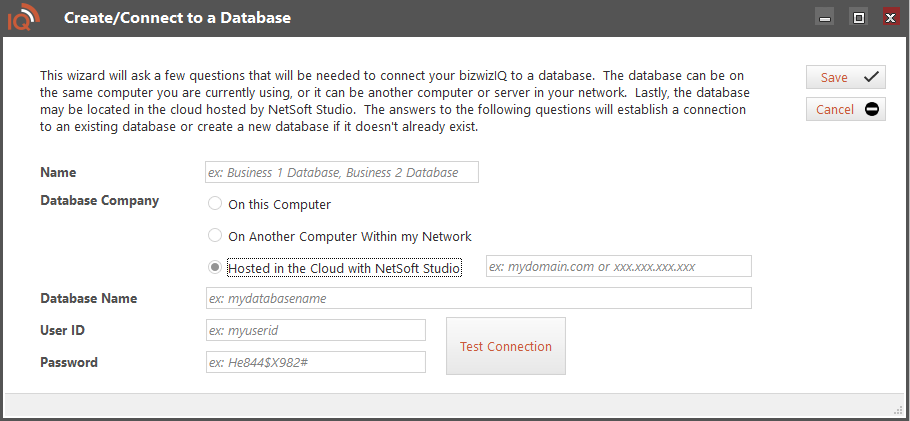
- Name: Enter the name of your business or something to identify your location. (recommend using the same name on each client app install)
- Hosted in the Cloud with NetSoft Studio: Enter the IP address or domain name provided to you by NetSoft Studio.
- Database Name: Enter the name of the database provided to you by NetSoft Studio.
- User ID: Enter the User ID provided to you by NetSoft Studio.
- Password: Enter the password provided to you by NetSoft Studio.
Then click on the Test Connection to ensure you are connected you have setup everything correctly.
On this Computer
This choice will create a database on the computer you are working on.
- The bizwizIQ Server APP must be installed as well on the same computer.
- All other computers will link to the database installed on this computer.
- This is a local installation and unless you have your IT professionals setup a domain or WAN static IP address, you will not be able to login from outside of your Local Area Network (LAN).
- If you are also subscribed to using the ShopKart website, we highly recommend that you select the Hosted in the Cloud version for your database.
See below image on instructions for each field

- Name: Enter the name of your business or something to identify your location
- Database Name: Enter the name of the database. (No spaces allowed)
- User ID: Enter a User ID for this database.
- Password: Enter a password for this database.
Then click on the Test Connection to ensure you are connected you have setup everything correctly.
On Another Computer Within my Network
This choice is chosen when your database is located in your Local Area Network (LAN).
See below image on instructions for each field

- Name: Enter the name of your business or something to identify your location. (recommend using the same name when you created the database)
- On Another Computer Within my Network: Enter the IP address of the computer in your network that the database is installed on
- Database Name: Enter the name of the database. (No spaces allowed)
- User ID: Enter the User ID for the database listed .
- Password: Enter the password for this database listed.
Then click on the Test Connection to ensure you are connected you have setup everything correctly.