
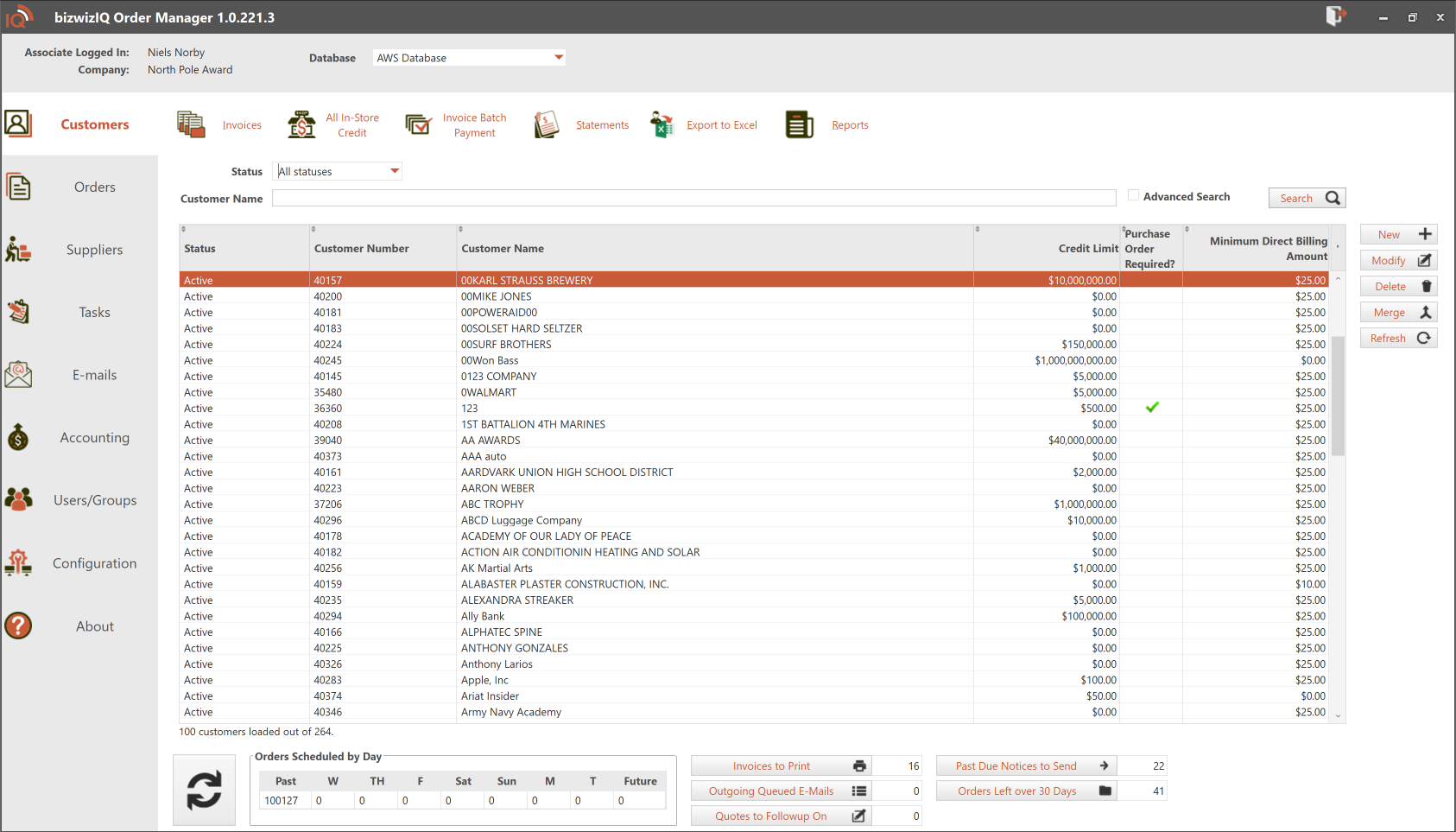
Clicking the Customers tab automatically displays the Work With Customers window. From here, you can search for customers, create customer records, and update existing customer information.
Each Customer is a parent account with one or more Account Centers beneath it. Every customer must have at least one Account Center. Account Centers let you organize separate schools, departments, or locations within the same customer account.
Account Centers are created and maintained on the Account Centers tab in the Maintain Customer window.
Find an Existing Customer
Search by Customer Name
- Click the Customers tab.
- Enter all or part of the customer’s name in the Customer Name field.
- Select a Status, or choose All statuses.
- Click Search.
The results include customers whose names contain your search term. You do not need to enter the complete name.
Use Advanced Search
Use Advanced Search to search all fields in the customer record.
- Enter your search term in the Customer Name field.
- Check Advanced Search.
- Select a Status, or choose All statuses.
- Click Search.
Open a Customer Record
Select the customer in the results and click Modify to display the Maintain Customer window.
Search tip: If you cannot find a customer, try a shorter search term, check the spelling, and select All statuses. Use Advanced Search when the information you know may be stored in another field.
Create a New Customer
Before creating a customer, search for an existing record to help avoid duplicates.
- Click the Customers tab.
- Click New.
- Enter the customer’s information in the Maintain Customer window.
- Review the customer settings and Account Center information.
- Save the record.
For a guided introduction, see Setting Up Customers.
Update Customer Information
- Find the customer in the Work With Customers window.
- Select the customer and click Modify.
- Make your changes in the Maintain Customer window.
- Save your updates.
The Maintain Customer window provides access to customer settings, Account Centers, addresses, orders, balances, documents, outgoing emails, and default order comments.
For details about these fields and tabs, see Maintain Customer Window.
Customer Action Buttons
The buttons on the right side of the Work With Customers window let you work with customer records.
| Button | Purpose |
|---|---|
| New | Create a customer record in the Maintain Customer window. |
| Modify | Open the selected customer record to review or update its information. |
| Delete | Request deletion of the selected customer record, subject to the system’s deletion restrictions. |
| Merge | Begin combining duplicate customer records. |
| Refresh | Update the customer list to reflect recent changes. |
Delete a Customer
Select the customer you want to remove, then click Delete. Review any messages or restrictions displayed by Order Manager before proceeding.
Merge Duplicate Customers
Use Merge when multiple customer records represent the same customer. Before proceeding, review the records and identify which customer account you want to keep.
Select the customer record and click Merge, then follow the prompts displayed by Order Manager.
Refresh the Customer List
Click Refresh to update the displayed customer list after changes have been made.
Find Customer Invoices
Click Invoices at the top of the Customers tab to display the Work With Invoice window.
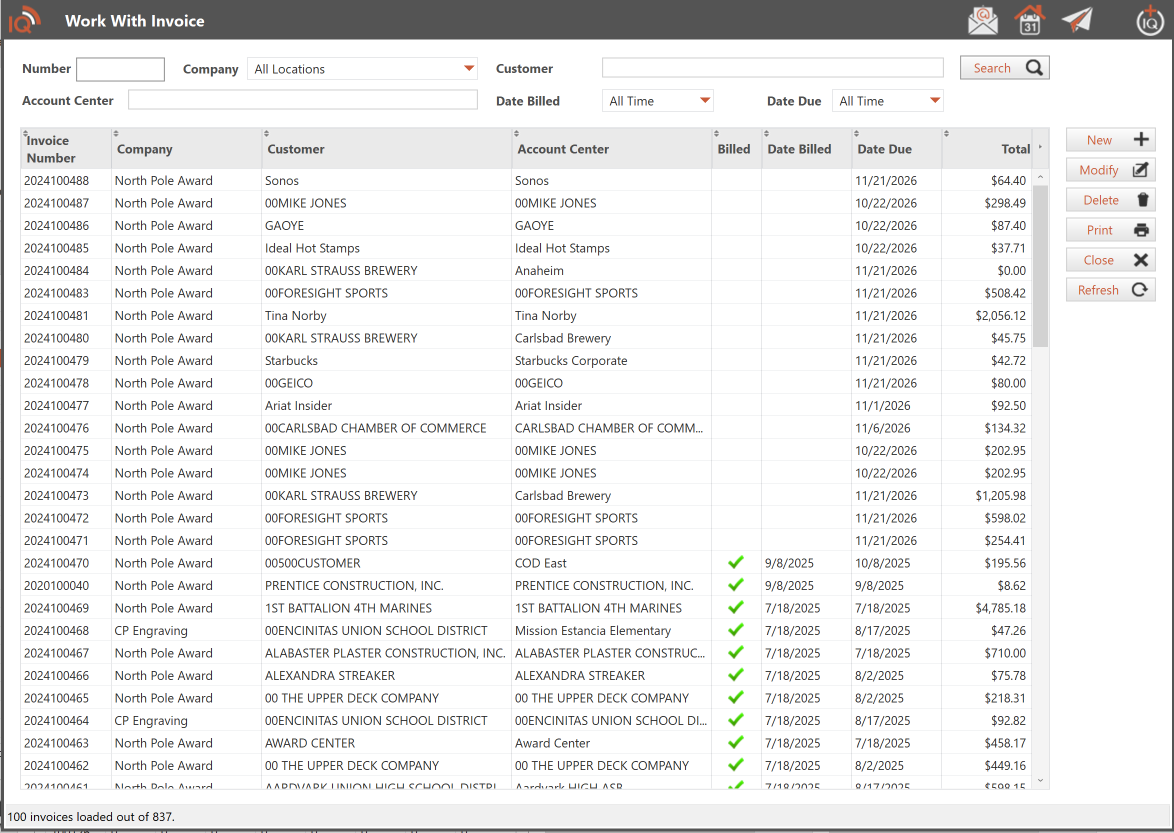
| Search Field | Purpose |
|---|---|
| Number | Find a specific invoice by its invoice number. |
| Company | Limit results to a particular company or location. |
| Customer | Find invoices associated with a customer. |
| Account Center | Find invoices associated with an Account Center. |
| Date Billed | Filter invoices by their billing date. |
| Date Due | Filter invoices by their due date. |
Enter your criteria and click Search, then open an invoice to review it.
Search tip: Your selections work together to narrow the results. If an invoice does not appear, check all selected filters and date ranges.
Find In-Store Credits
Click All In-Store Credit at the top of the Customers tab to display the credit search window.
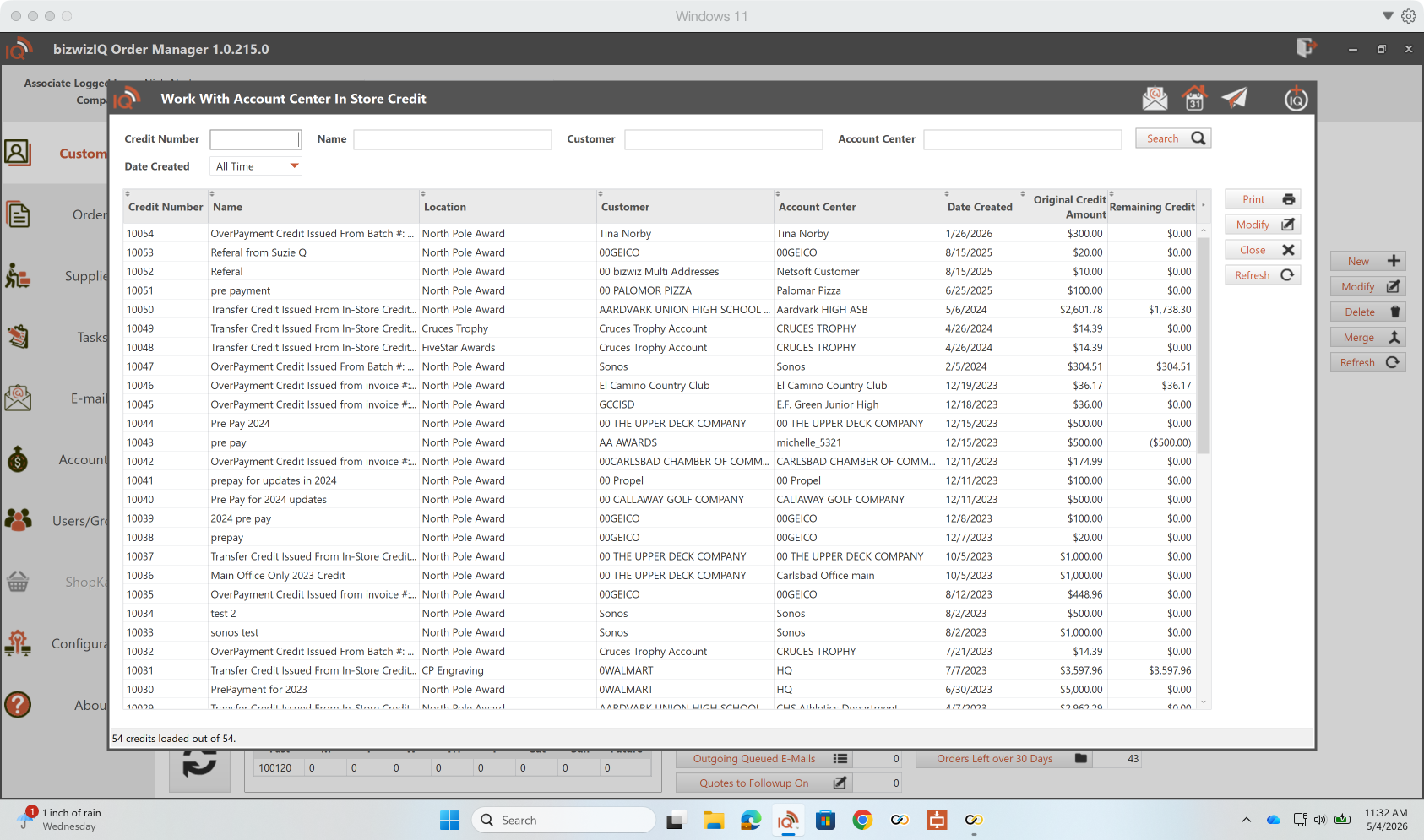
Enter the available search criteria to locate a credit, then review the matching results. Adding more criteria narrows the search.
Work With Invoice Payment Batches
Invoice Batch Payment allows you to apply multiple payments to customer invoices. This is useful when you receive several checks or one check that pays multiple invoices.
Click Invoice Batch Payment at the top of the Customers tab to display the batch list. Use the date range to find previous payment batches.
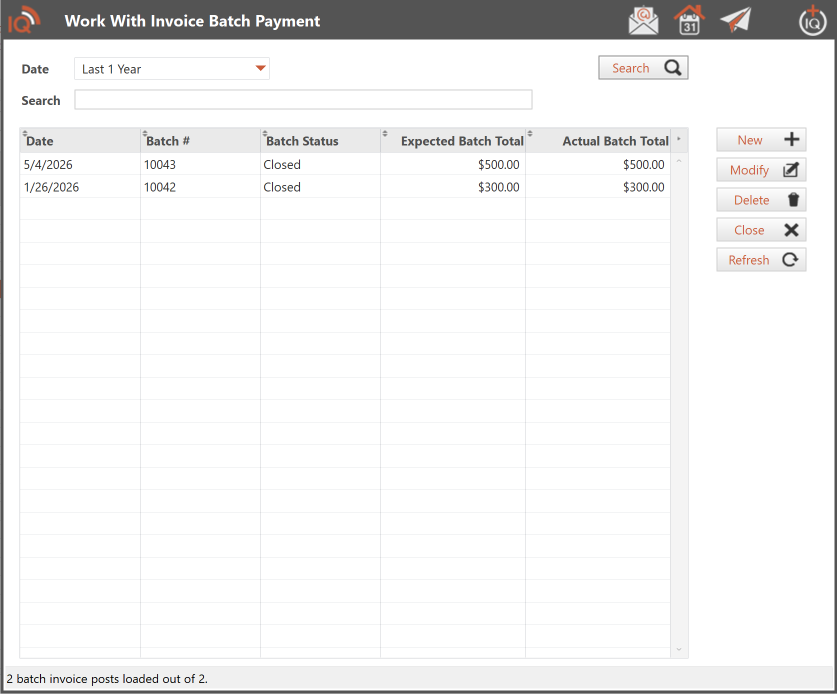
| Button | Action |
|---|---|
| New | Display the Maintain Invoice Batch Payment window to create a batch. |
| Modify | Open a selected batch. Open batches can be edited; closed batches can be reviewed. |
| Delete | Delete a selected open batch. |
| Refresh | Update the list of batches. |
| Close | Close the window. |
Send Customer Statements
Send a Statement to One Customer
- Click the Customers tab.
- Find and select the customer.
- Click Statements at the top of the tab.
- Review the available statement options and complete the process.
You can also access customer statement options from the Balance/Aging tab in the Maintain Customer window.
Send Statements to Multiple Customers
Click Reports, then select the Customer Statement tab to access statement options for multiple customers.
Import Customers from Legacy Order Manager
Customer importing is available only to users migrating from Legacy Order Manager.
To access the import tools, go to System Setup and select the Legacy Order Manager tab.
New users who are not migrating from Legacy Order Manager should create customers individually using New in the Work With Customers window.