
Getting Started — Article 3 of 11
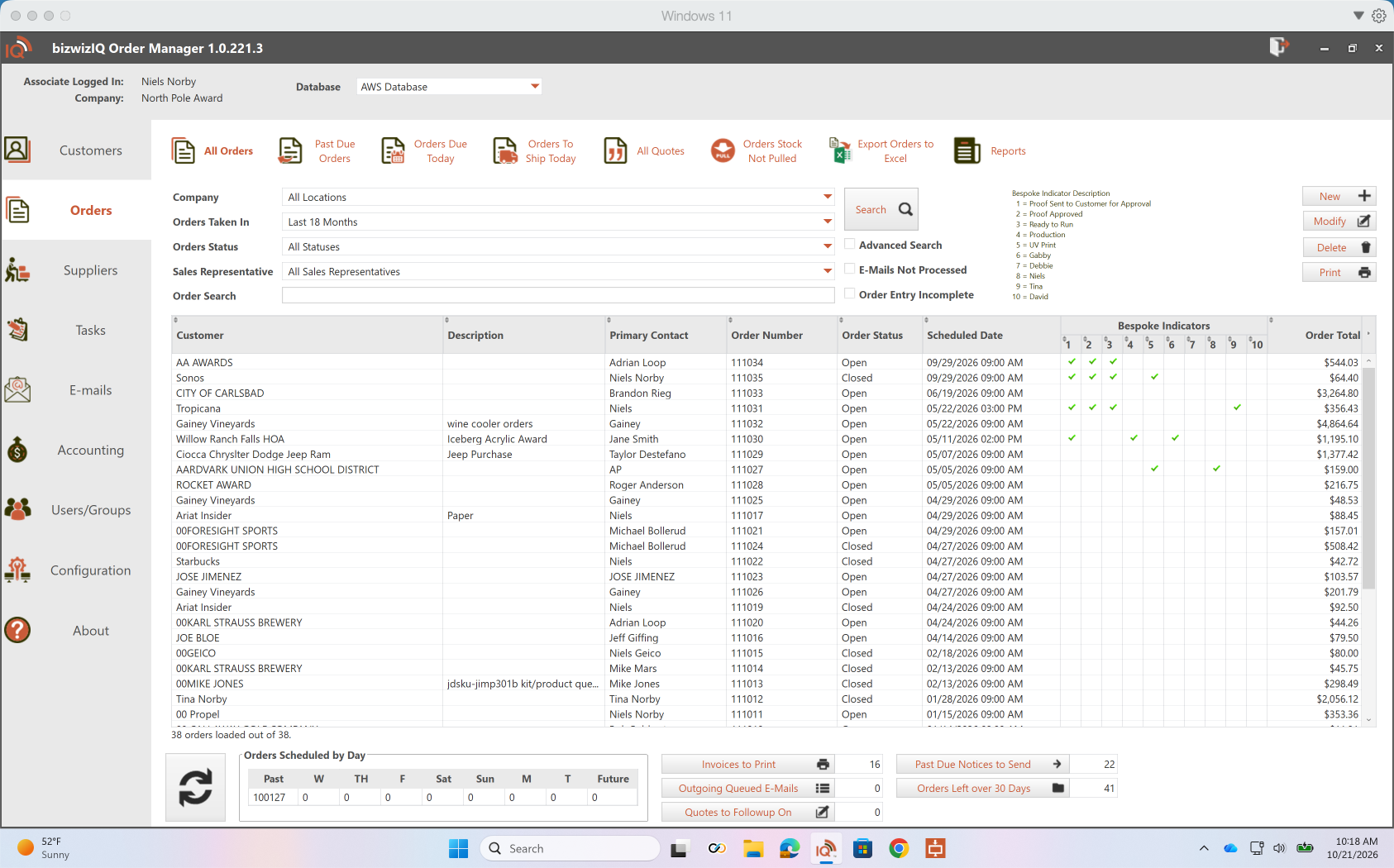
Once you've logged in to bizwizIQ Order Manager, you'll see the main program window.
Order Manager is organized to make it easy to access the different areas of your business, including customers, orders, products, and other daily activities.
This guide introduces the main parts of the program and explains how to navigate its screens.
Navigating Order Manager
bizwizIQ Order Manager uses navigation tabs to organize the different functions of the program. Each tab provides access to the tools and information associated with a specific area of your business.
The main navigation tabs include:
- Customers: Create, locate, and maintain customer records, including contact information and customer details.
- Orders: Create and manage customer orders, prepare quotes, and track order progress.
- Suppliers: Maintain supplier information and manage purchasing activities.
- Tasks: Manage production tasks and track work associated with customer orders.
- E-Mails: Access and manage email communications.
- Accounting: Access invoicing, payments, and other accounting-related functions.
- User/Groups: Create and maintain user accounts, groups, and access permissions.
- Configuration: Set up and maintain Products, Detailed Products, Product Families, Kits, pricing information, company settings, and other system configuration options.
- About: View information about bizwizIQ Order Manager.
Selecting a tab displays the functions available for that area of Order Manager.
As you become familiar with the program, you'll notice that many screens use a similar layout, making it easier to navigate and manage information.
Understanding Work With Screens
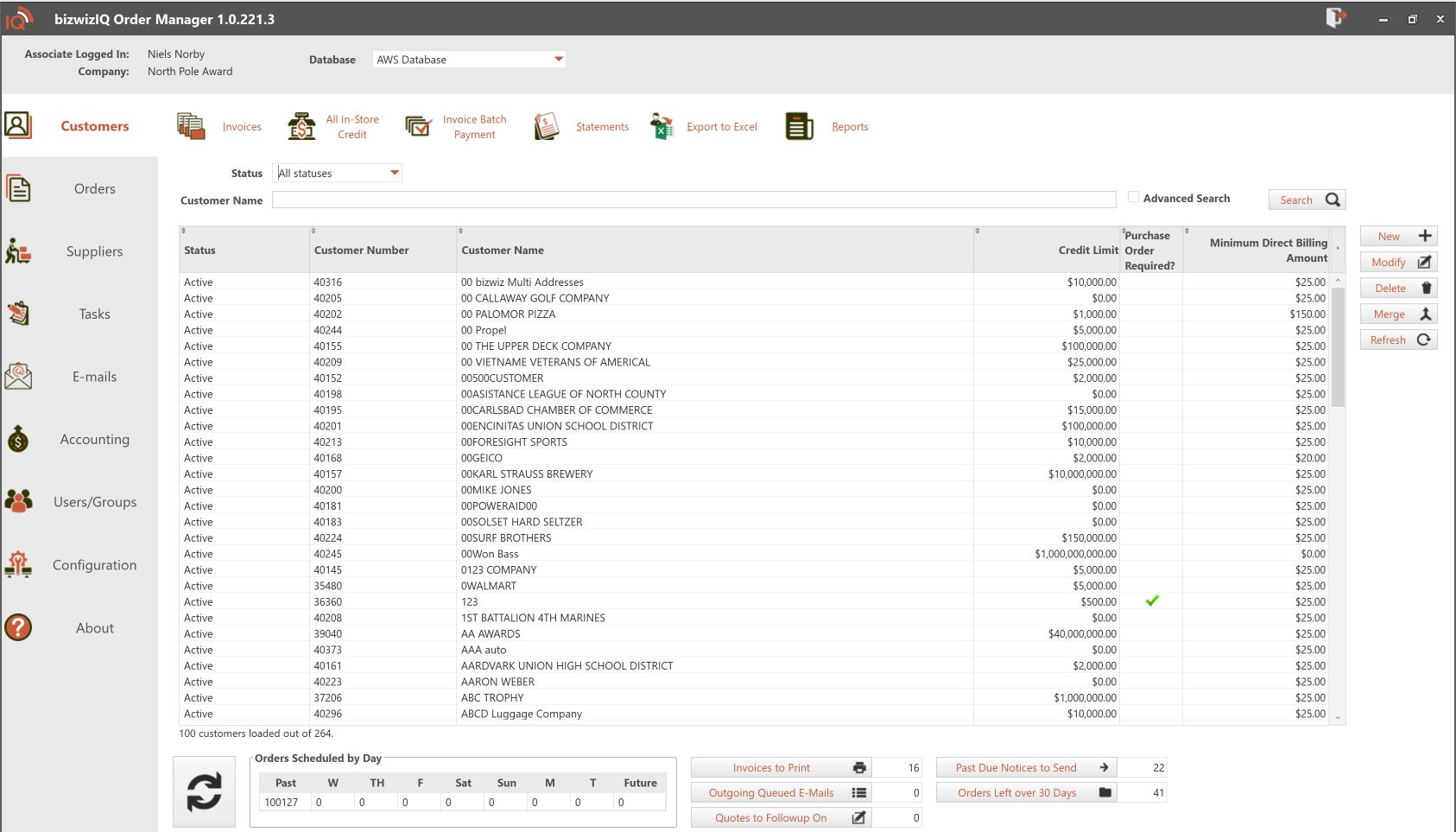
Throughout Order Manager, you'll encounter windows referred to as Work With screens.
These screens display a list of existing records, such as customers, orders, or products.
Work With screens typically allow you to:
- View existing records.
- Search for specific information.
- Select a record to review or modify.
- Access actions associated with the selected record.
For example, the Work With Customers screen displays customer records and provides options for working with them.
For more information, see Various Screen Types.
Understanding Maintain Screens
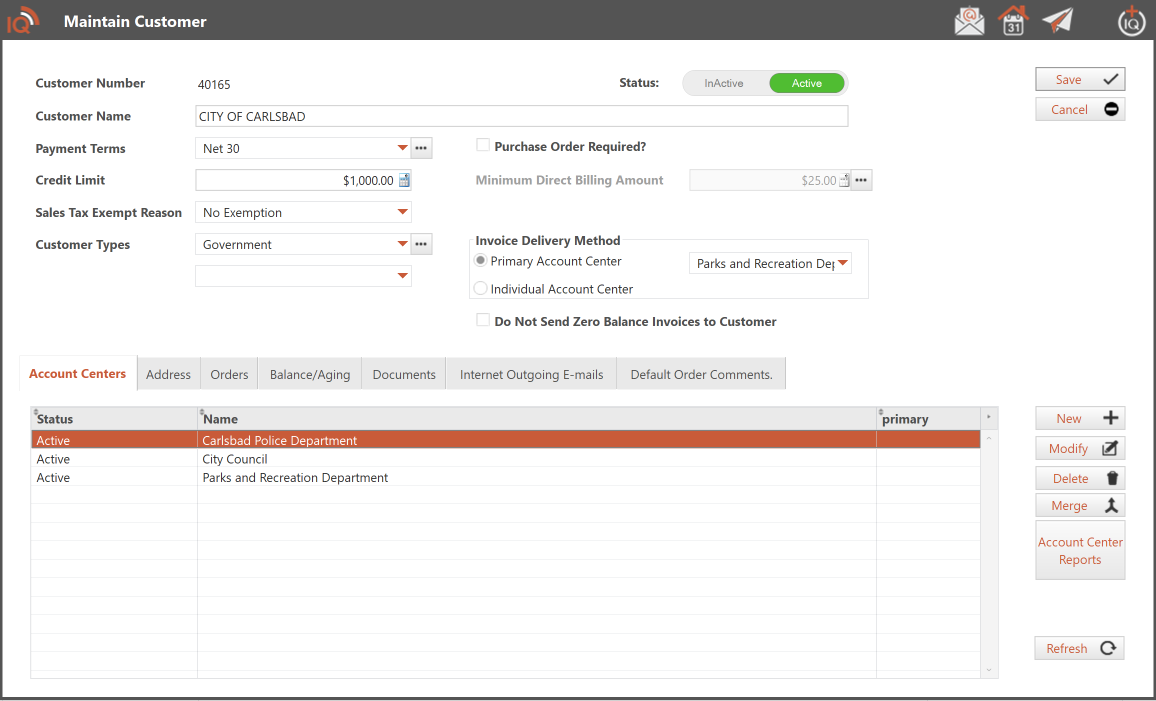
Maintain screens are used to add new records or update existing information.
For example, the Maintain Customer window allows you to enter or modify customer information.
Maintain screens typically contain fields for entering information, along with buttons and other controls for working with the record.
You'll use these screens frequently when setting up customers, products, and orders.
Common Window Controls
Order Manager uses several common controls throughout the program.
- Logout: Logs out the current user and returns to the login screen.
- Minimize/Maximize: Adjusts the program window size.
- Close (X): Closes Order Manager.
Additional buttons and controls may appear depending on the screen you're using.
Getting Comfortable with Navigation
Before continuing with your initial setup, take a few minutes to explore the program.
Open the different navigation tabs and become familiar with where information is located.
You don't need to understand every function right away. The remaining Getting Started articles will walk you through the important areas of Order Manager.
For more detailed information, see:
What's Next?
Now that you're familiar with the Order Manager interface, you're ready to begin configuring the system for your business.
Next Article: Setting Up Your Company
Learn how to review your company information and configure the settings needed to begin using Order Manager.