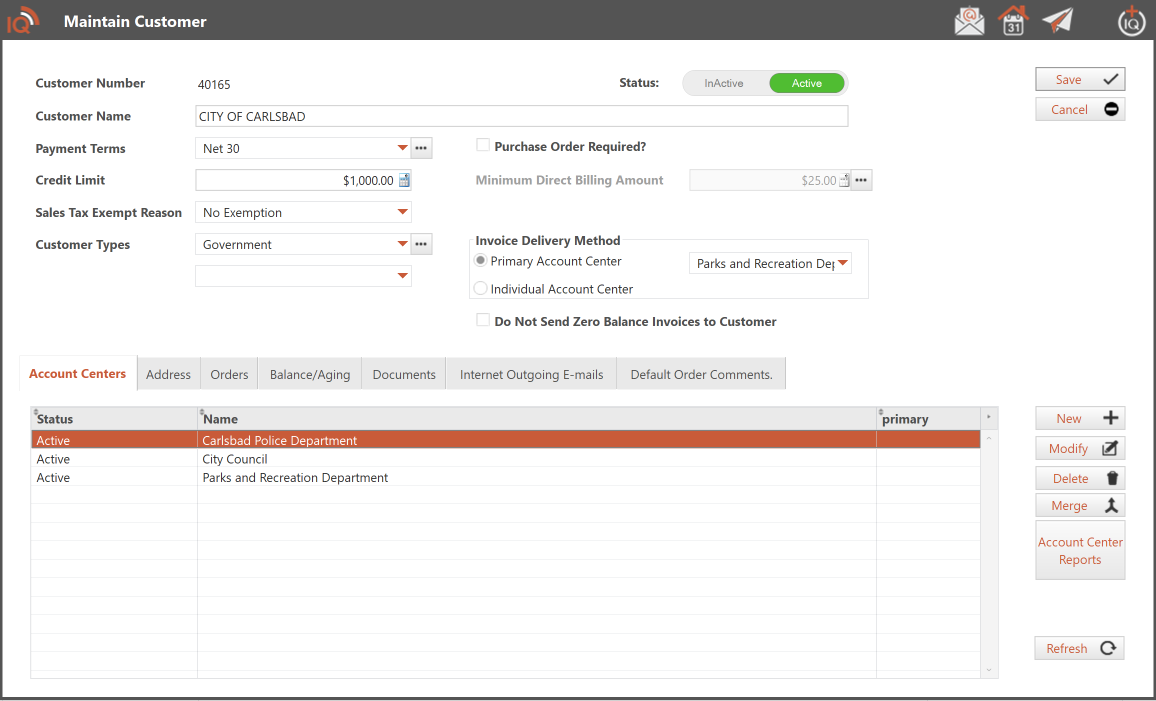
The Maintain Customer window enables you to consolidate customer information and documents within a streamlined and organized interface.
Customer Setup (Top half of window)
The upper portion of the window provides a comprehensive overview of the Order Manager’s functionality in relation to this specific customer.
Invoice Delivery Method: The two choices are explained below
- Primary Account Center: If you have multiple account centers, but all invoices are paid by Headquarters or one of the account centers, select the primary account center and select from the dropdown menu the account center you want all invoices to be sent to.
- Individual Account Center: Select this option if you wish to send invoices to the individual account center associated with the order.
Do Not Send Zero Balance Invoices to Customers: Check this if you do not want to send invoices to customers where the balance has already been paid.
Customer Window Tabs (Bottom half of window)
The lower section of the window contains several tabs that facilitate the manipulation of tables of data.
- New Button: Opens a new Maintain Account Center Window
- Modify Button: Opens the Maintain Account Center window of the selected Account Center.
- Delete Button: Allows you to delete an unused account center. If the account center has been used, you cannot delete it.
- Merge Button: Select an account center you want to merge other account centers into.
- Account Center Reports Button: This feature opens the Account Center Reports window, enabling you to generate various reports related to account centers.
- New Button: Click the new button to add more addresses.
- Modify Button: Opens the Maintain Account Center Address window allowing you to modify the selected record
- Delete Button: Delete the selected record. (Cannot delete an address that has already been used by Order manager)
- New Button: Click the new button to start a new order
- Modify Button: Opens the Maintain Order Window of the selected record
- Delete Button: Delete the selected record. (Cannot delete a closed order or an order with payment details)
Balance/Aging Tab: Lists all open current and aging invoices
- New Button: Opens the Add Account Center Invoice window to enter a new invoice. Be careful as entering items is a manual process. If you add a product that is taxable, you will need to manually add a tax line as well.
- Modify Button: Select a record and click the Modify button to open the Maintain Account Center Invoice window.
- Delete Button: Delete the selected record. (Cannot delete a closed order or an order with payment details)
- Print/E-Mail Customer Statement Button: Click to send a statement (and/or invoices) to the customer
- Spending Analysis Button: Opens the customer Analysis window displaying the customers spending.
- Delete Button: Delete the selected record. (Cannot delete a closed order or an order with payment details)
Documents Tab: Lists all Documents attached to this customer
- New Button: Opens the Add Customer Document window to allow you to select a document by clicking on the Import Document button and selecting a document to attach to the Customer records.
- Open Button: Select a record and click the Open button to open a document.
- Upon request, you will be prompted to “Checkout” the document. If you choose to do so, you will gain access to view and edit the document. Subsequently, you can “check in” the updated document. Conversely, if you decline to “Checkout,” you will only be able to view the document. However, any changes you make to the document will not be saved to the customer document.
- Check In Button: Check in the selected document that was previously checked out.
- Print/E-Mail Customer Statement Button: Click to send a statement (and/or invoices) to the customer
- Cancel Check Out Button: Cancels the check out of the document.
- Modify Button: Opens the Maintain Customer Document to allow you to change the name of the file, edit the description of the document, and open a copy of the document.
- Delete Button: Deletes the selected document from the customer record.
Internet Outgoing E-mails Tab: Lists all e-mails sent on behalf of the customer record
- New Button: Opens a window to send a new E-mail.
- Modify Button: Select a record and click the modify button to review the email
Default Order Comments Tab: Lists all Default Order comments for the customer record
- New Button: Opens the Maintain Customer Default Order Comment window. You can enter a comment that will be attached to any new order created for this customer. You also have a check box to allow you to display the comment when maintaining an order.
- Modify Button: Select a record and click the modify button to review the email
- Delete Button: Deletes the selected record