
A Kit in bizwizIQ® Order Manager is a group of component products that provides a selection of options when configuring a finished product.
A finished product can have one or more kits assigned to it. Each kit represents a different group of available components.
When adding a finished product to a customer order, Order Manager allows the user to select one component from each kit assigned to that finished product.
Example: Configuring a Custom Trophy
A trophy shop sells a customizable trophy that allows customers to choose a column, base, and figure.
The finished product has three kits assigned to it:
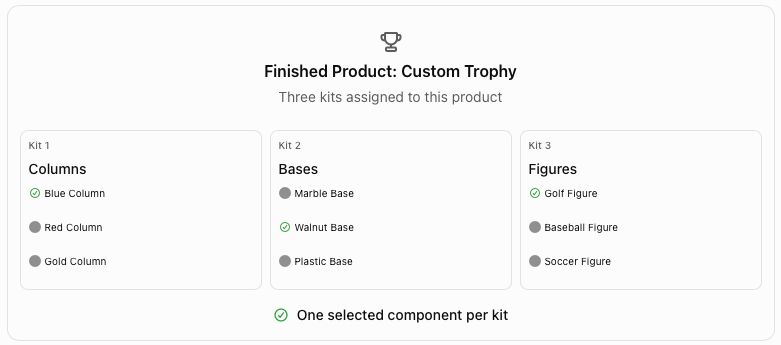
In this example, the customer orders a trophy configured with a Blue Column, Walnut Base, and Golf Figure.
Although each kit contains several available components, only one component can be selected from each kit.
Related Kit Topics
Learn how to create, maintain, and use kits in bizwizIQ® Order Manager by clicking on the below links:
Work With Kits - Learn how to access the Kits screen, locate existing kits, and use the available functions.
Creating a New Kit - Step-by-step instructions for creating a kit and adding component products.
Maintaining an Existing Kit -Learn how to modify a kit, add additional components, or remove components that are no longer needed.
Assigning Kits to Finished Products -Learn how to assign one or more kits to a finished product to provide customizable component selections.
Selecting Kit Components During Order Entry - Learn how to select one component from each assigned kit when adding a finished product to a customer order.