
Overview
The Selecting Kit Components During Order Entry function in bizwizIQ® Order Manager allows users to select and modify component products from kits assigned to a Finished Detail Product.
When a Finished Detail Product has one or more kits assigned, Order Manager allows the user to select the appropriate component from each kit.
For example, a customizable trophy may have separate kits for its base, column, and sports figure. During order entry, the user can select the components needed to complete the customer's order.
Only one component from each assigned kit can be selected for an order line item.
For more information about kits, see Understanding Kits.
Accessing Kit Components During Order Entry
There are three ways to access kit components when working with an order:
- Automatically when adding a Finished Detail Product — The kit selection window opens after saving an order line item that has assigned kits.
- Using the Kit Details button — Open an existing order line item and click Kit Details.
- Expanding an order line item — Use the expand arrow in the Order Line Items section of the Maintain Order screen to display its kit components.
Method 1: Selecting Kit Components When Adding an Order Line Item
When a Finished Detail Product with assigned kits is added to an order, Order Manager automatically presents the kit selection window.
Step 1: Add a Finished Detail Product
- Open an existing order or create a new order.
- In the Order Line Items section, click New.
- The Maintain Order Line Item window will open.
- Select the desired product and SKU.
- Enter the quantity and any other required information.
- Click Save.
Step 2: Review the Kit Components
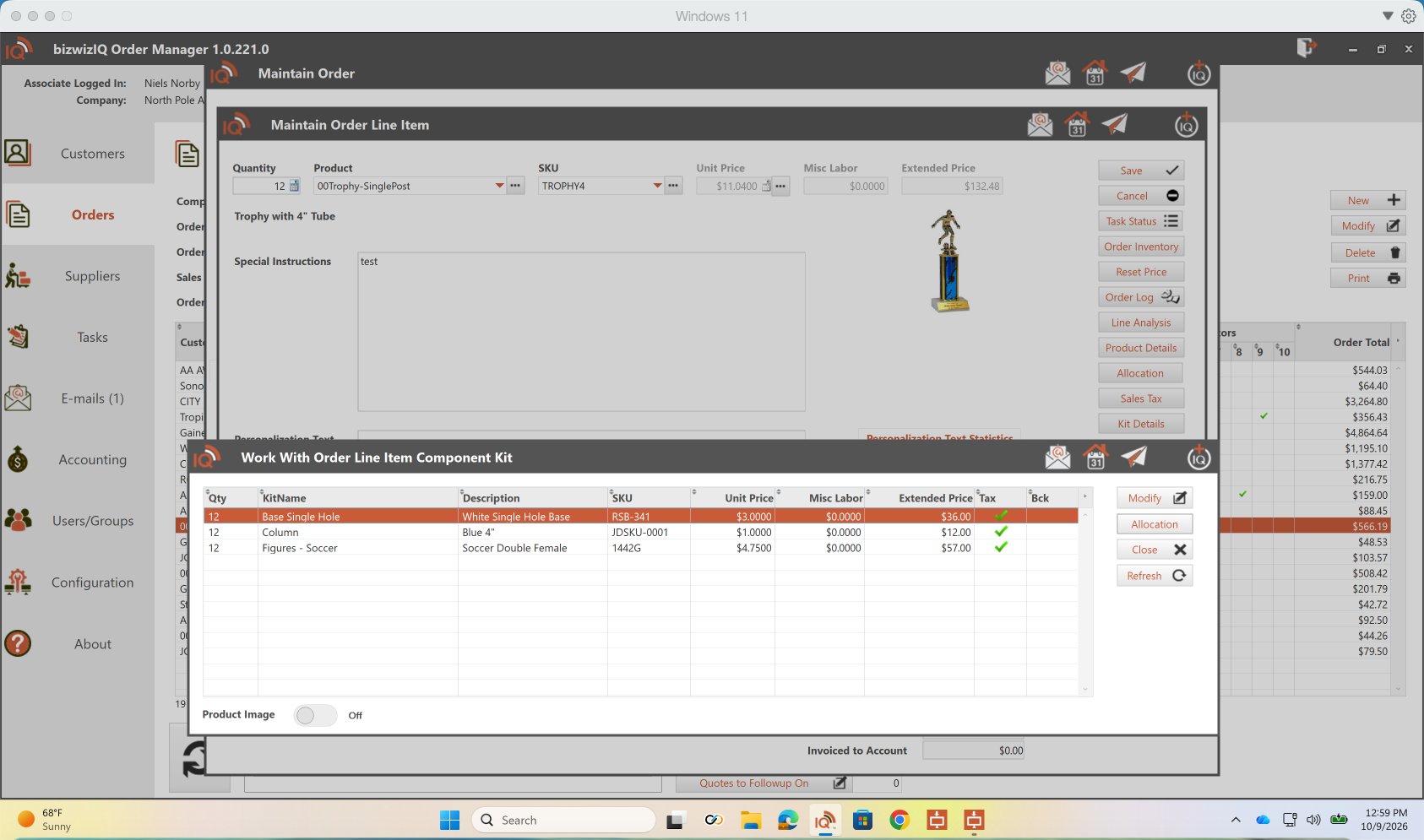
If the selected Finished Detail Product has kits assigned, the Work With Order Line Item Component Kit window will automatically open.
This window displays the kits associated with the order line item and the components currently selected.
The list includes the following information:
- Qty: Quantity of the selected component.
- KitName: Name of the assigned kit.
- Description: Description of the selected component product.
- SKU: SKU of the selected component.
- Unit Price: Unit price of the selected component.
- Misc Labor: Additional labor amount associated with the component.
- Extended Price: Extended price for the selected component.
- Tax: Tax indicator.
- Bck: Backorder indicator.
Step 3: Select or Change a Kit Component
- Locate the kit containing the component you want to change.
- Select the kit row.
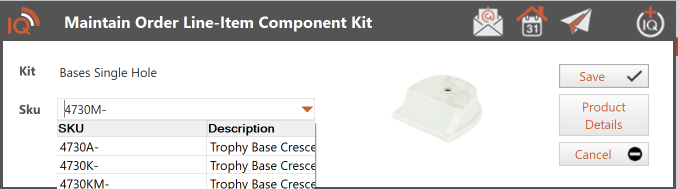
- Click Modify.
- Select the desired component product from the available choices.
- Save the component selection.
- Repeat for any additional kits that require changes.
Example:
A customer orders a trophy that includes a blue column, white base, and soccer figure.
If the customer prefers a red column, the user can modify the Column kit selection and choose the red column instead.
Step 4: Review Component Pricing
Each component product within a kit has its own price.
When a different component is selected, Order Manager applies the Price Adjustment Method configured for that kit assignment.
The available methods are:
- No Price Adjustment: The Finished Detail Product's selling price remains unchanged.
- Adjust Price Up Only: The selling price increases when a higher-priced component is selected, but does not decrease for a lower-priced component.
- Adjust Price Up or Down: The selling price increases or decreases according to the price difference between the default component and the selected component.
Example:
If the default column costs $5.00 and the selected column costs $8.00, the price difference is $3.00.
When Adjust Price Up or Down is selected, the Finished Detail Product's selling price increases by $3.00.
For additional pricing examples, see Assigning Kits to Finished Detail Products.
Step 5: Close the Kit Component Window
After reviewing the component selections, click Close to return to the order.
The selected kit components are associated with the order line item.
Method 2: Accessing Kit Components Using Kit Details
Users can also access kit components after an order line item has been created.
This is useful when a customer wants to change a previously selected component.
Step 1: Open the Order Line Item
- Open the order in the Maintain Order screen.
- Select the order line item containing the assigned kits.
- Click Modify to open the Maintain Order Line Item window.
Step 2: Open Kit Details
- Locate the Kit Details button on the right side of the Maintain Order Line Item window.
- Click Kit Details.
- The Work With Order Line Item Component Kit window will open.
Step 3: Modify the Selected Components
- Select the kit component you want to change.
- Click Modify.
- Select the replacement component.
- Save the change.
- Repeat as needed for additional kits.
- Click Close when finished.
Any applicable price adjustment is determined by the Price Adjustment Method assigned to the kit.
Method 3: Viewing Kit Components from the Maintain Order Screen
Kit components can also be viewed directly from the Order Line Items section of the Maintain Order screen.
Step 1: Locate the Order Line Item
- Open the order in the Maintain Order screen.
- Select the Order Line Items tab.
- Locate the Finished Detail Product containing the assigned kits.
Step 2: Expand the Order Line Item
When an order line item contains kit components, an expand arrow (>) appears to the left of the line item.
Click the arrow to expand the line item and display its selected kit components.
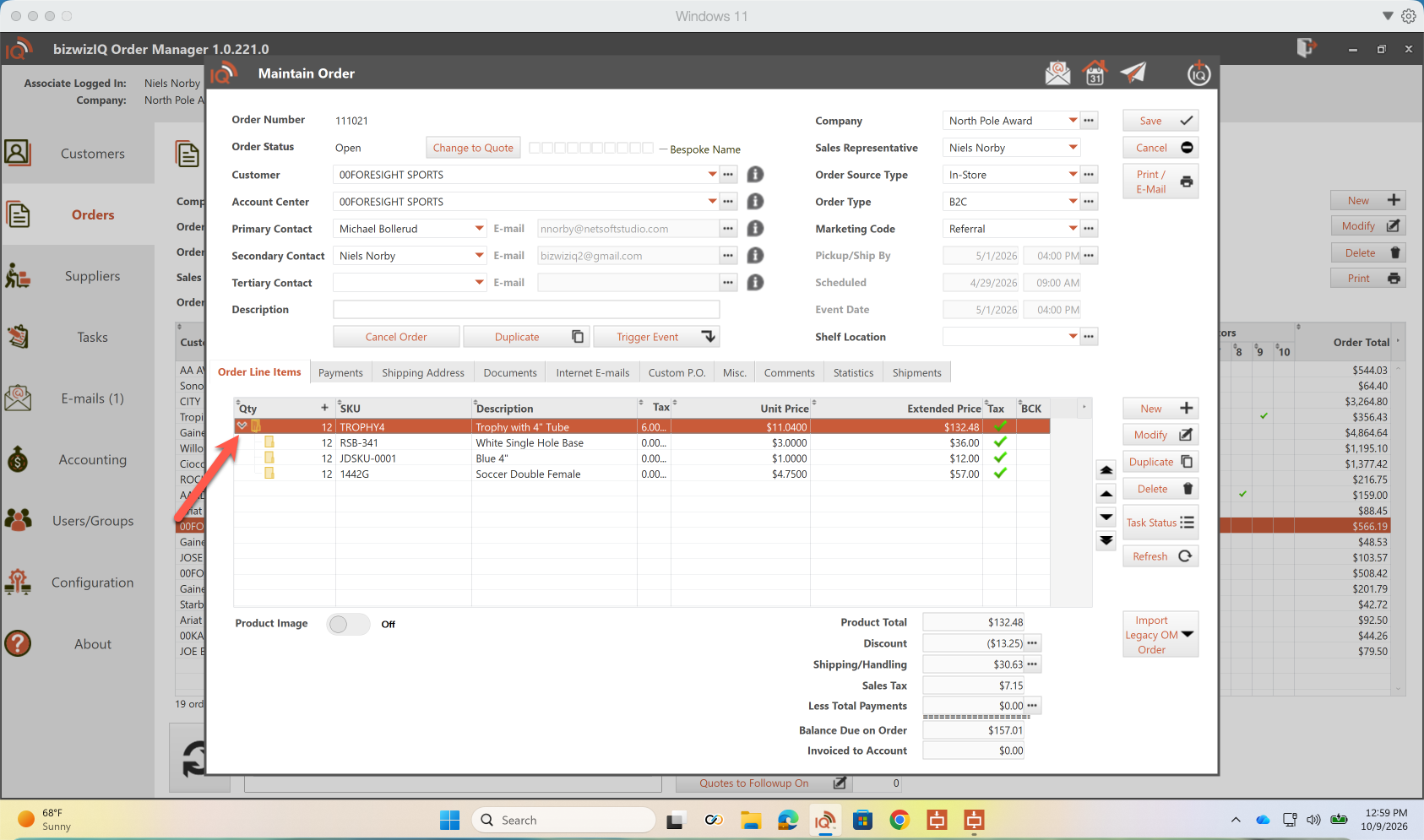
The expanded list displays the individual components associated with the Finished Detail Product.
Step 3: Review or Change a Component
- Locate the component you want to change in the expanded list.
- Select the component.
- Open it for modification.
- Select the replacement component and save the change.
This provides a convenient way to review and modify kit components without first opening the main Finished Detail Product line item.
Important Information About Kit Components
- A Finished Detail Product can have multiple kits assigned.
- Only one component can be selected from each assigned kit.
- Kit components are associated with the Finished Detail Product's order line item.
- Users can change component selections after the order line item has been created.
- Component price differences are handled according to the Price Adjustment Method configured for each kit.
- Expanding an order line item allows users to view its individual kit components.
Related Kit Topics
- Understanding Kits — Learn what kits are and how they work.
- Work With Kits — Learn how to access and manage kits.
- Creating a New Kit — Learn how to create a kit and add component products.
- Maintaining an Existing Kit — Learn how to modify existing kits.
- Assigning Kits to Finished Detail Products — Learn how to assign kits and configure their pricing methods.