
Getting Started — Article 8 of 11
Before you begin processing customer orders, it's important to organize your products into Product Families and set up the Suppliers your business purchases from.
bizwizIQ Order Manager uses Product Families to organize products, establish pricing methods, and automate production workflows. Suppliers allow you to maintain information about the companies you purchase products and materials from.
Step 1: Understanding Product Families
Product Families allow you to organize similar products and apply common settings to them.
For example, you might create Product Families for:
- Acrylic Awards
- Crystal Awards
- Plaques
- Engraved Plates
- Personalized Gifts
Product Families provide more than just product organization. They can also define important settings used when products are added to customer orders.
Pricing Formulas
A Product Family can have a base pricing formula that determines how selling prices are calculated.
Products assigned to the family can use this formula, while individual Detailed Products can override it when necessary.
Production Workflows
A Product Family can be assigned a task workflow.
When a product associated with that family is added to a customer order, its workflow is automatically assigned to the order.
This helps organize production activities and ensures the appropriate tasks are created.
Estimated Production Time
Product Families can include estimated person-minutes used for production scheduling.
This helps Order Manager estimate the time required to complete work associated with the product.
Step 2: Access Product Families
To access Product Families:
- Log in to bizwizIQ Order Manager.
- Select the CONFIGURATION tab.
- Locate the Product Management section.
- Click Product Families.
The Work With Product Families window will open.
From this window, you can create new Product Families, search for existing families, and maintain their settings.
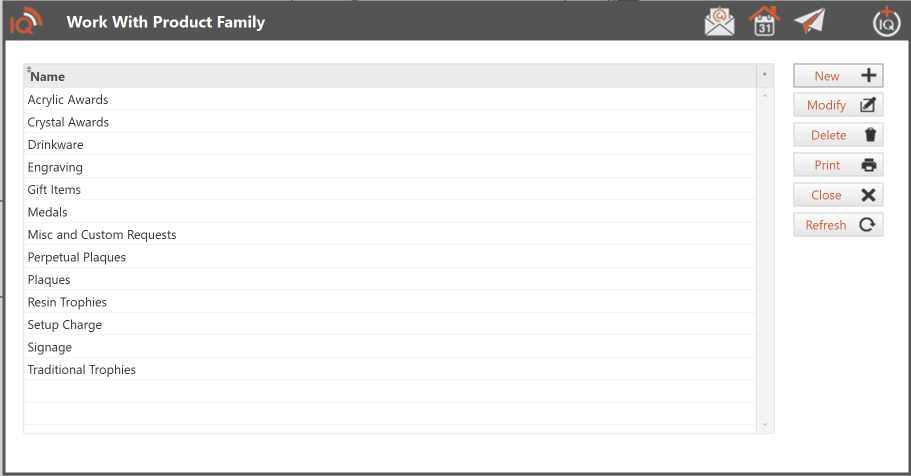
For more information, see Work With Product Families.
Step 3: Create a Product Family
To create a new Product Family:
- Open the Work With Product Families window.
- Click New.
- Enter the Product Family information.
- Configure the base pricing formula, if applicable. This formula can be used to calculate selling prices for Detailed Products assigned to this Product Family.
- Assign a production workflow, if applicable.
- Enter the estimated person-minutes used for scheduling, if applicable.
- Save your changes.
Once created, the Product Family can be assigned to Products in Order Manager.
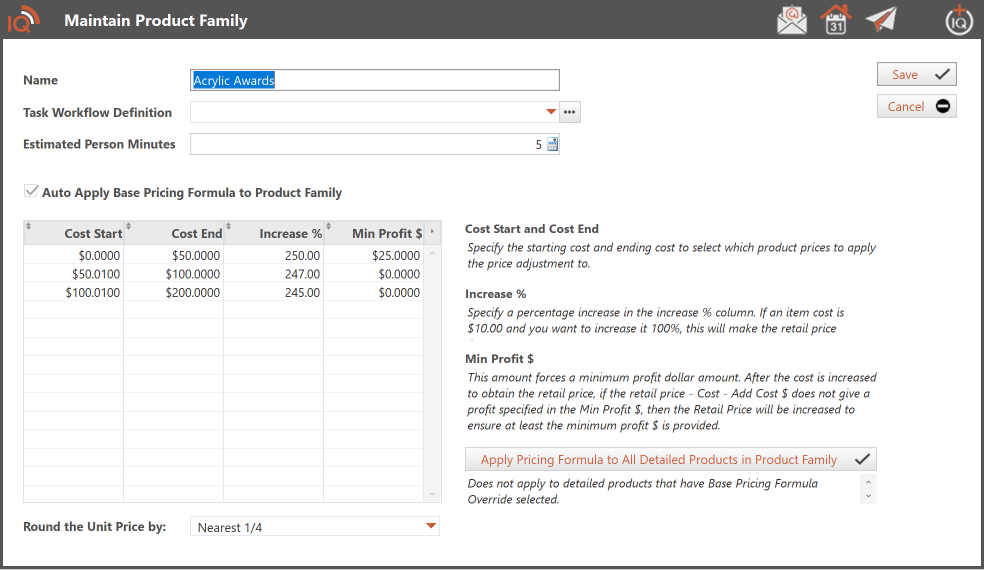
For additional information, see Maintain Product Family.
Step 4: Understanding Suppliers
Suppliers are the companies your business purchases products, materials, or supplies from.
For example, an awards and personalization business might purchase acrylic awards, plaques, engraving materials, or other supplies from different Suppliers.
Maintaining Supplier information allows you to associate products with their Suppliers and manage purchasing activities.
Step 5: Access Suppliers
To access your Suppliers:
- Log in to bizwizIQ Order Manager.
- Click the SUPPLIERS tab.
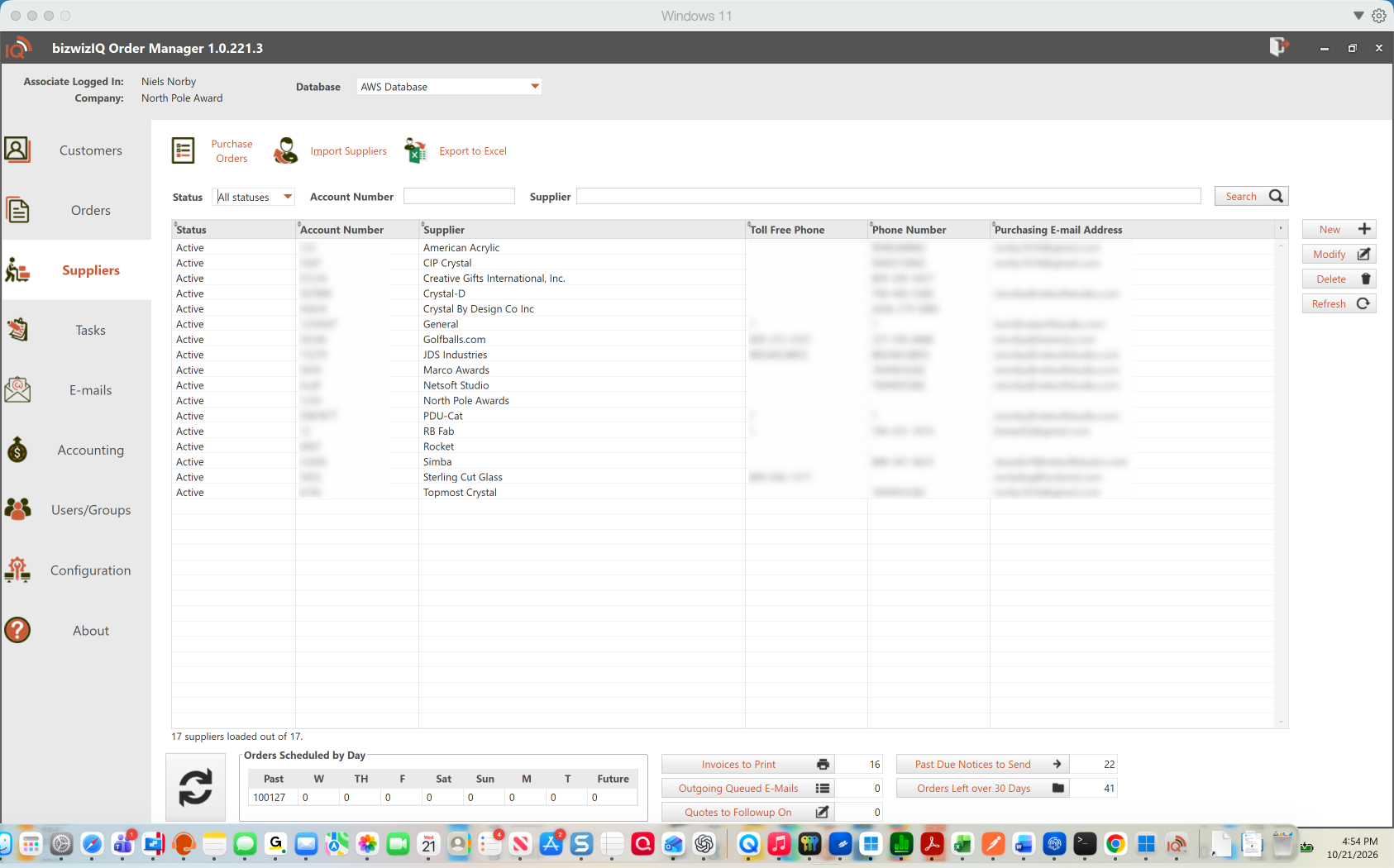
The Work With Suppliers window will automatically be displayed.
From this window, you can add new Suppliers, search for existing Suppliers, and maintain Supplier information.
Step 6: Create a Supplier
To add a new Supplier:
- Open the Work With Suppliers window.
- Click New.
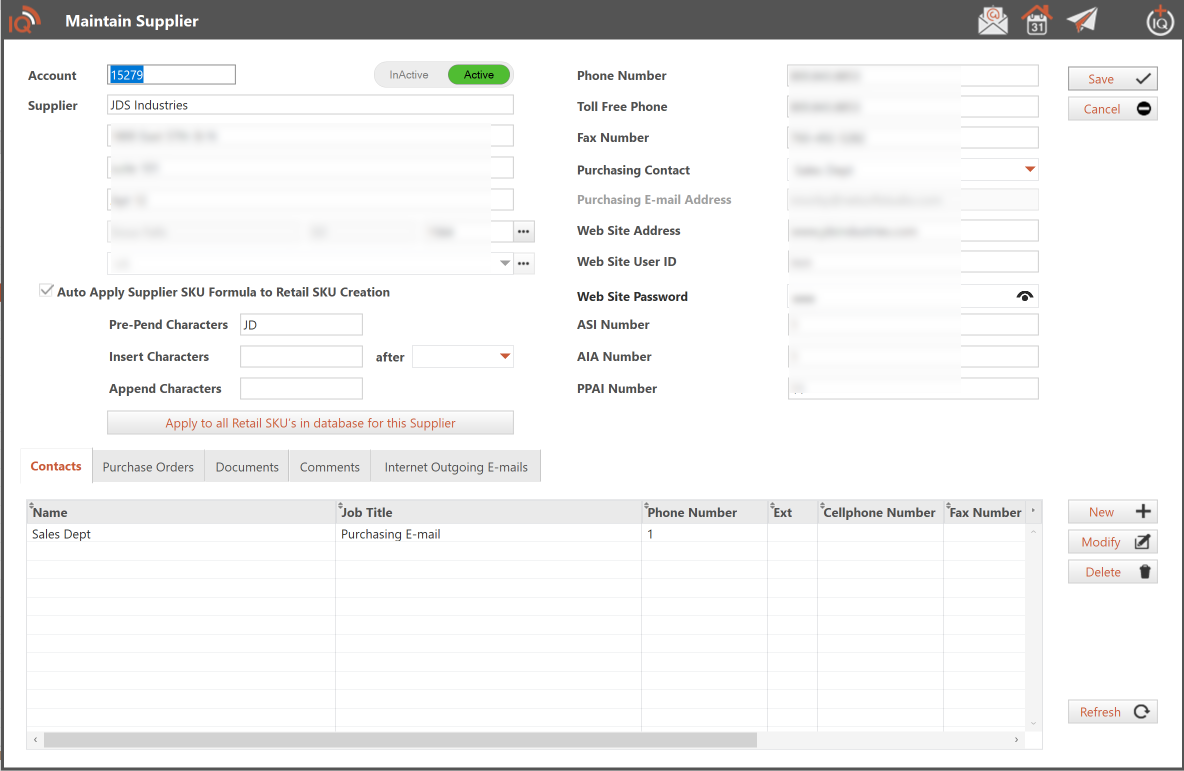
- Enter the Supplier's company information.
- Add contact information, addresses, and other applicable details.
- Save the Supplier record.
Once created, the Supplier can be associated with Products in Order Manager.
Step 7: Assign Suppliers and Product Families to Products
Once your Suppliers and Product Families have been created, you can associate them with your Products.
To do this:
- Select the CONFIGURATION tab.
- Under Product Management, click Products.
- Create a new Product or open an existing Product.
- Select the appropriate Supplier and Product Family.
- Save your changes.
Assigning Products to the appropriate Suppliers and Product Families helps maintain consistent purchasing, pricing, and production information.
For more information, see Maintain Product.
What's Next?
Now that you've configured your Suppliers and Product Families, you're ready to review the sales tax settings used when processing customer orders.
Next Article: Setting Up Sales Tax
Learn how to configure Sales Tax Tables and prepare Order Manager to calculate sales tax on customer orders.