
Getting Started — Article 4 of 11
Before you begin entering customer orders, it's important to review and configure your company information in bizwizIQ Order Manager.
These settings help ensure that Order Manager has the correct information for your business.
Step 1: Open Company Management
To access your company information:
Log in to bizwizIQ Order Manager.
Select the Configuration tab.
Locate the Configuration Management section.
Click Companies.
The Work With Company window will appear, displaying the companies currently configured in Order Manager.

Step 2: Review Your Company Information
To review or update an existing company:
- Locate your company in the list.
- Double-click the company, or select it and click Modify.
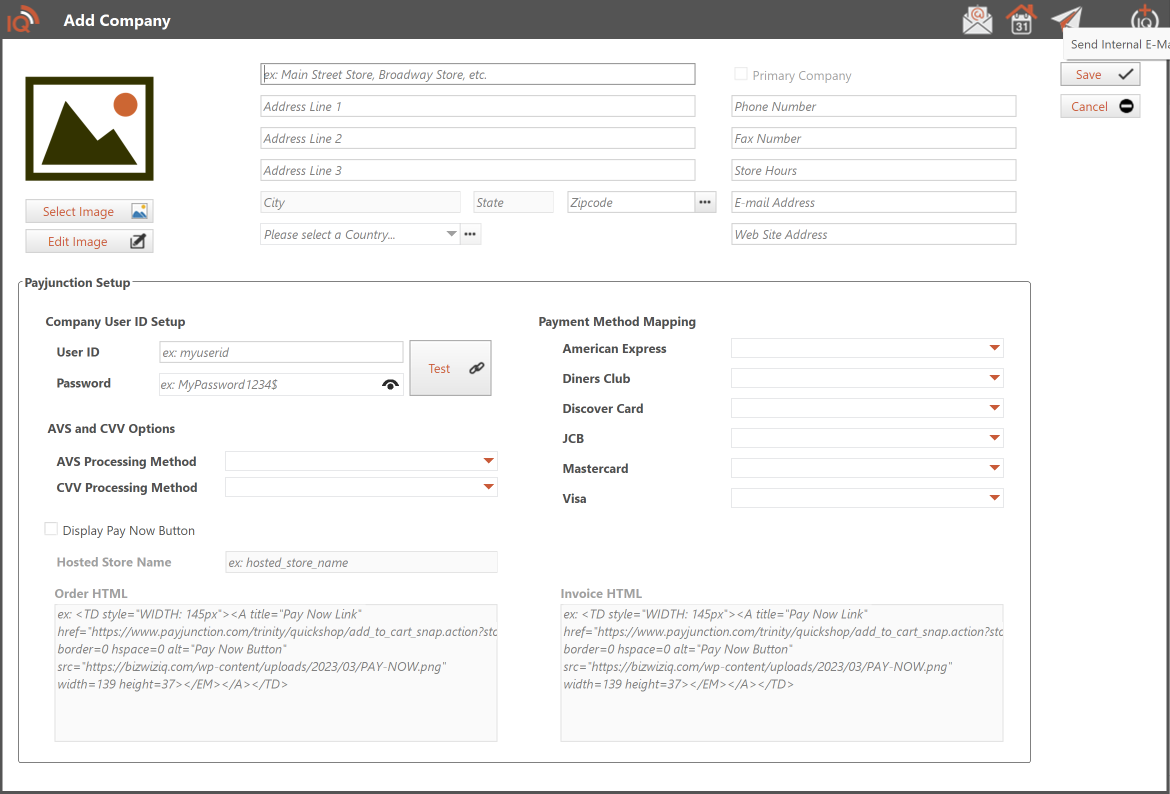
- The Maintain Company window will open.
- Review the available fields and update your company information as needed.
- Save your changes when finished.
Make sure the information entered accurately reflects your business.
Important: If a company is designated as the Default Company, its name can only be changed by Netsoft Studio. Other company information can be updated as needed.
For more detailed instructions, see Work With Company and Add / Maintain Company.
Step 3: Review System Configuration
Order Manager includes additional settings that control how the program operates.
To review these settings:
- Select the Configuration tab.
- Open System Configuration.
- Review the settings available for your business.
Netsoft Studio Login Information
If you're using a licensed copy of Order Manager, you must enter your Netsoft Studio login information in the Default Settings area of System Configuration.
This information is required for licensed copies of Order Manager.
If you're using Order Manager in Limited (Demo) Mode, Netsoft Studio login information is not required.
For detailed instructions, see System Configuration.
Step 4: Review Additional Setup Requirements
There are several other important items to configure before processing your first customer order:
- Users and Groups: Set up individual users and their access permissions.
- Customers: Create or import customer records.
- Products and Pricing: Set up the products and services your business sells.
- Vendors and Product Families: Organize your supplier and product information.
- Sales Tax: Configure the appropriate Sales Tax Tables for your business.
These topics are covered in the remaining Getting Started articles.
You do not need to configure everything at once. Begin with the settings required for your business and add other features as needed.
What's Next?
Now that you've reviewed your company information and initial settings, you're ready to configure the users who will access Order Manager.
Next Article: Setting Up Users and Groups
Learn how to create user accounts, organize users into groups, and manage access to Order Manager functions.