
Getting Started — Article 9 of 11
Before processing customer orders, it's important to configure the sales tax settings for your business.
bizwizIQ Order Manager allows you to maintain Sales Tax Schedules, configure sales tax exemptions, and control how shipping charges are treated for sales tax purposes.
Step 1: Understanding Sales Tax Schedules
Order Manager provides several ways to create Sales Tax Schedules, including manually creating a schedule, copying an existing schedule, or importing sales tax information.
Step 2: Access Sales Tax Schedules
To access Sales Tax Schedules:
- Log in to bizwizIQ Order Manager.
- Select the CONFIGURATION tab.
- Locate the Misc. Reference Management section.
- Click Sales Tax Schedules.
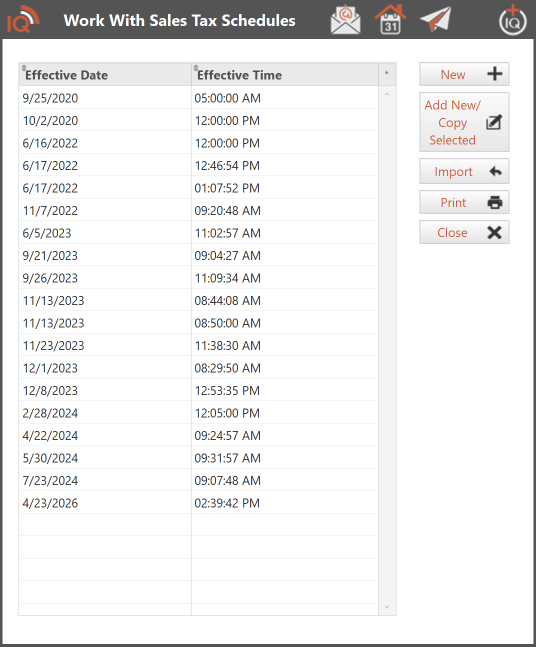
The Work With Sales Tax Schedules window will open.
This window displays existing schedules along with their Effective Date and Effective Time.
The following options are available:
- New: Create a new Sales Tax Schedule.
- Add New/Copy Selected: Create a schedule using an existing schedule as a starting point.
- Import: Import Sales Tax Schedule information.
- Print: Print Sales Tax Schedule information.
- Close: Close the window.
Step 3: Create or Update a Sales Tax Schedule
You can create a Sales Tax Schedule using one of the following methods.
Option 1: Create a New Sales Tax Schedule
To manually create a schedule:
- Open the Work With Sales Tax Schedules window.
- Click New.
- Enter the required sales tax information.
- Review the schedule's Effective Date and Effective Time.
- Save the schedule.
Option 2: Add New/Copy Selected
This option is useful when an existing schedule contains most of the tax information you need.
For example, when tax rates change, you can copy an existing schedule and modify only the information that has changed.
To create a schedule from an existing one:
- Open the Work With Sales Tax Schedules window.
- Select the schedule you want to copy.
- Click Add New/Copy Selected.
- Review the copied tax information.
- Update the Effective Date, Effective Time, and any tax information that has changed.
- Save the new schedule.
This allows you to maintain previous schedules while creating updated schedules for future use.
Option 3: Import a Sales Tax Schedule
Importing allows you to bring sales tax information into Order Manager. Importing a Sales Tax Schedule does not automatically finalize it. Review the imported information and make any necessary changes before saving.
To import a schedule:
- Open the Work With Sales Tax Schedules window.
- Click Import.
- Follow the import instructions.
- Review the imported tax information.
- Make any necessary changes before saving.
- Save the Sales Tax Schedule.
For additional information, see Import Sales Tax Tables.
Step 4: Understanding Effective Dates and Times
Each Sales Tax Schedule includes an Effective Date and Effective Time.
Order Manager uses the newest applicable schedule whose effective date and time have been reached.
For example:
- Your existing schedule became effective January 1, 2026.
- You create a new schedule effective January 1, 2027.
- Until the new schedule becomes effective, Order Manager continues using the existing schedule.
- Once the new schedule's Effective Date and Effective Time are reached, Order Manager uses the updated schedule.
This allows you to prepare sales tax changes in advance without immediately affecting current tax calculations.
Step 5: Configure Additional Sales Tax Settings
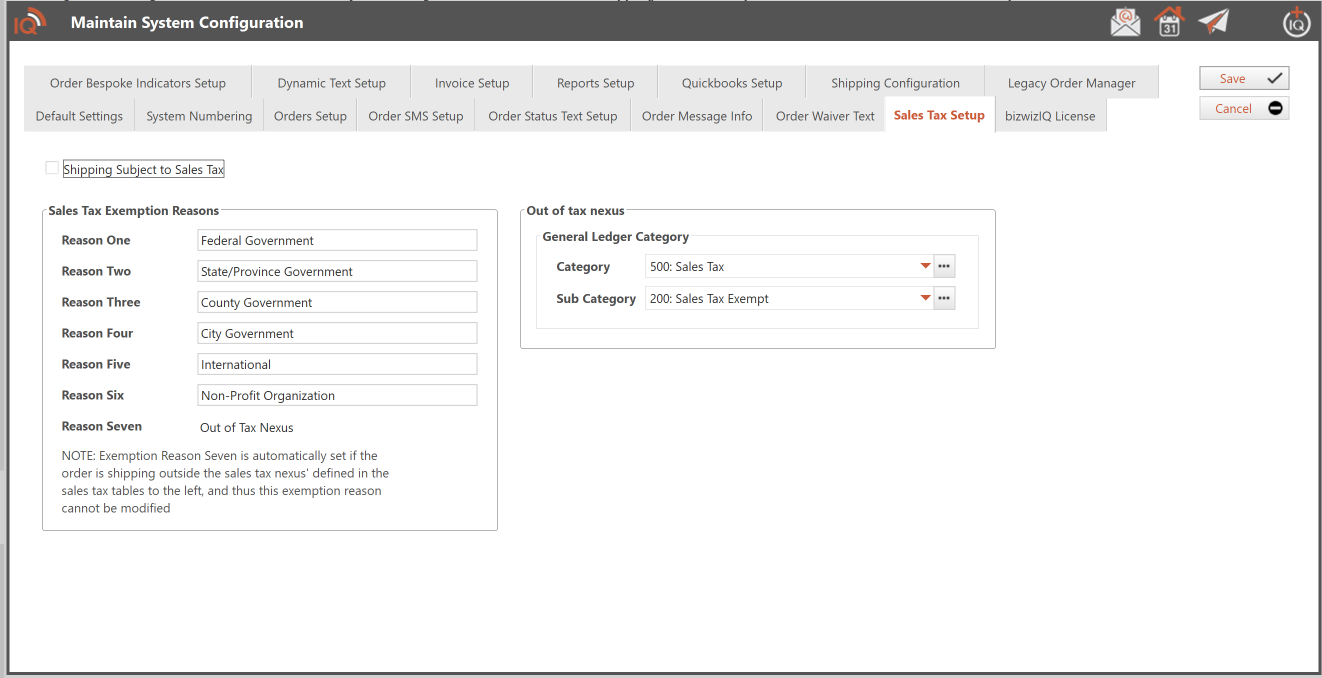
In addition to maintaining Sales Tax Schedules, Order Manager includes additional sales tax settings in System Configuration.
To access these settings:
- Select the CONFIGURATION tab.
- Open System Configuration.
- Select the Sales Tax Setup tab.
Shipping Subject to Sales Tax
Select Shipping Subject to Sales Tax if shipping charges should be included when calculating sales tax, based on your applicable tax requirements.
Sales Tax Exemption Reasons
Order Manager allows you to configure six customizable sales tax exemption reasons.
Examples include:
- Federal Government
- State/Province Government
- County Government
- City Government
- International
- Non-Profit Organization
A seventh exemption reason, Out of Tax Nexus, is automatically assigned when an order is shipped outside the sales tax nexus defined in your sales tax tables.
This seventh reason is controlled by Order Manager and cannot be modified.
Out of Tax Nexus — General Ledger Category
You can specify the General Ledger Category and Sub Category used for transactions classified as Out of Tax Nexus.
Review these settings to ensure they match your accounting configuration.
When finished, click Save.
For additional information, see System Configuration.
Step 6: Review Your Sales Tax Setup
Before processing customer orders, review your sales tax configuration.
Make sure:
- Your Sales Tax Schedules contain the correct tax information.
- Each schedule has the appropriate Effective Date and Effective Time.
- Future tax changes have been entered using the correct effective dates.
- Shipping tax settings reflect your business requirements.
- Sales tax exemption reasons have been configured.
- Out of Tax Nexus accounting settings have been reviewed.
Sales tax rates and requirements can change, so it's important to review your schedules periodically.
Important: Your business is responsible for determining which sales taxes must be collected and ensuring that the appropriate rates and settings are maintained.
What's Next?
Now that you've configured your Sales Tax Schedules and additional sales tax settings, you're ready to begin entering customer orders.
Next Article: Creating Your First Order
Learn how to select a customer, add products, and create your first order in bizwizIQ Order Manager.