
Getting Started — Article 5 of 11
bizwizIQ Order Manager allows you to create individual user accounts and organize users into groups.
Each user can have their own login credentials and security permissions. Groups make it easier to manage access by allowing multiple users to share security settings and email configurations.
Before your employees begin using Order Manager, you should create a user account for each person who needs access.
Step 1: Open User and Group Management
To access user and group management:
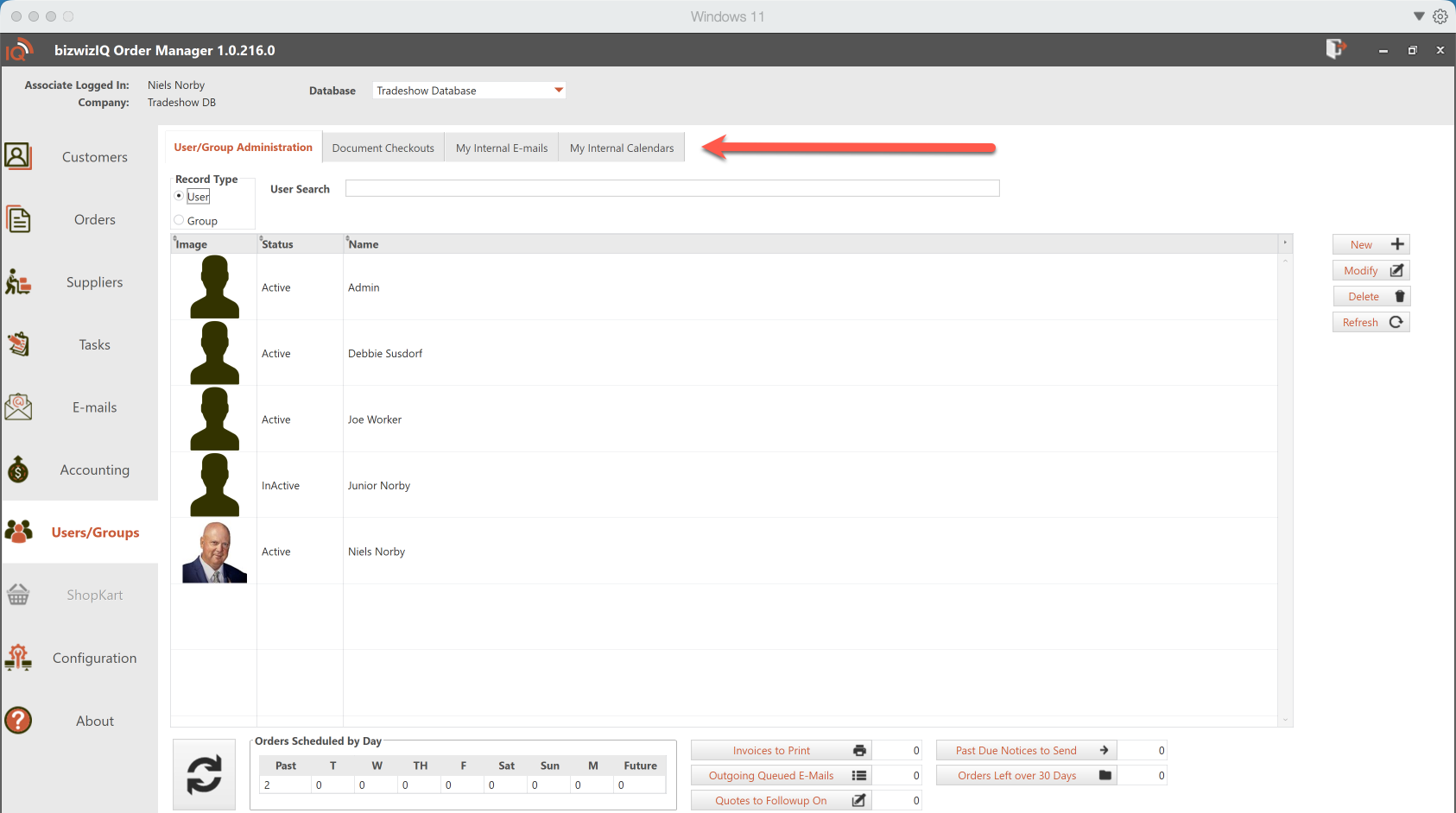
- Log in to bizwizIQ Order Manager.
- Select the USER/GROUPS tab.
- Open the User/Group Administrator area.
From this area, you can work with existing users and groups or create new ones.
Step 2: Create a User Account
Each employee who uses Order Manager should have their own user account.
To create a user:
- Select User as the record type.
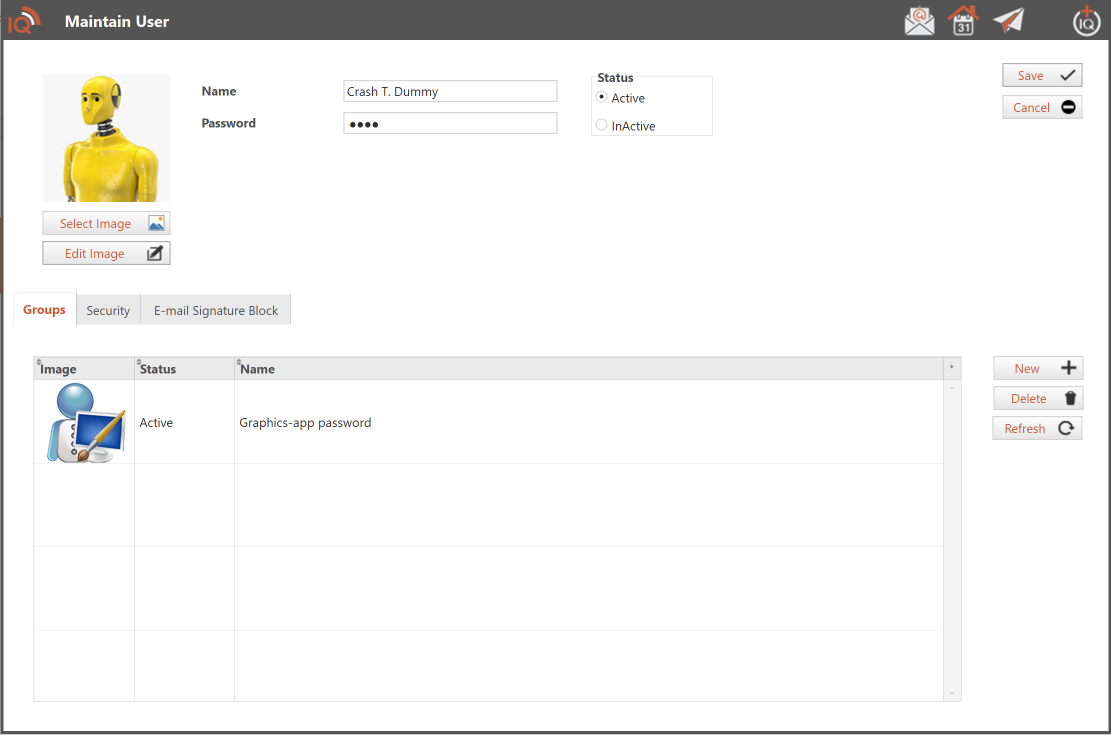
- Click New to open the Maintain User window.
- Enter the information required for the new user.
- Configure the user's available settings and permissions.
- Save the new user account.
Creating individual user accounts helps ensure that employees have the appropriate access to Order Manager.
Step 3: Understanding Groups
Groups allow you to organize users who perform similar functions within your business.
For example, you might create groups for:
- Administrators: Employees responsible for managing Order Manager settings and user access.
- Sales: Employees who work with customers, quotes, and orders.
- Graphics: Employees responsible for artwork, design, and preparing customer proofs.
- Production: Employees who manage production activities and tasks.
- Accounting: Employees responsible for invoicing and payment-related activities.
These are examples only. You can create groups that match how your business operates.
Group Security Permissions
Each group can have its own security permissions that determine which areas and functions of Order Manager its members can access.
When you assign a user to a group, the user inherits the security permissions assigned to that group, in addition to their individual user security permissions.
This makes it easier to configure access for new employees without having to set every permission individually.
For example, you can create a Graphics group with access to the functions needed to manage artwork and customer proofs. When a new graphics employee is added to that group, they automatically receive the group's security permissions.
Group Email Settings
Groups are also used to configure email settings in Order Manager.
You can configure the email settings associated with a group so that users assigned to that group can use the group's email configuration.
This helps simplify email setup and provides a centralized location for managing group email settings.
Step 4: Create a Group
To create a group:
- Return to the User/Group Administrator area.
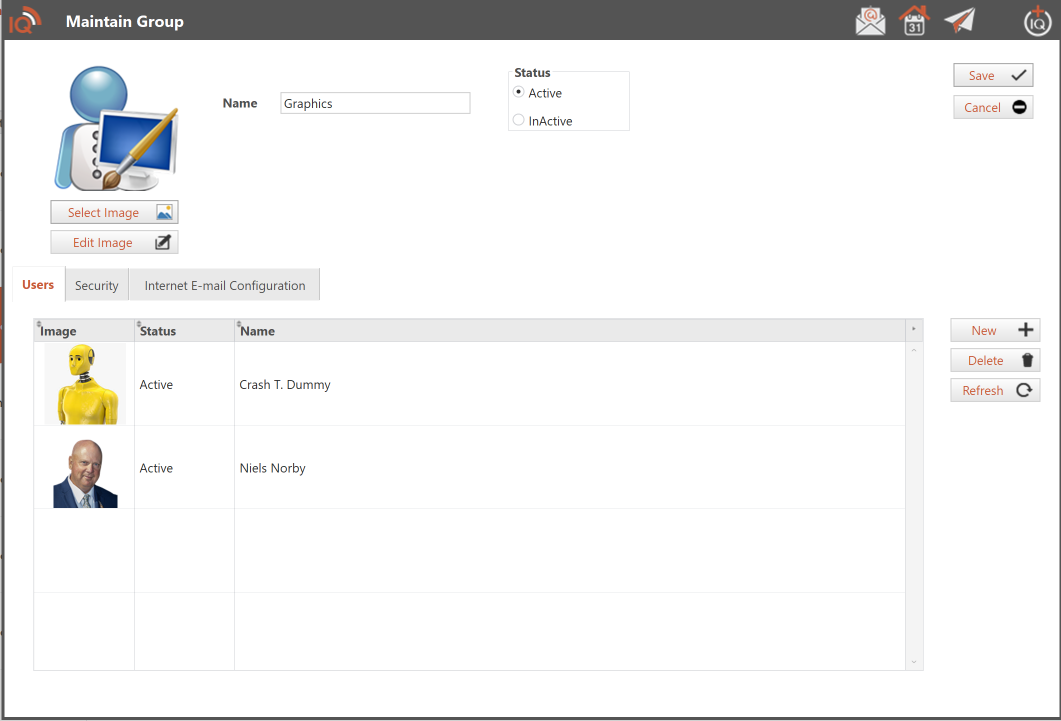
- Select Group as the record type.
- Click New to create a group.
- Enter the group information.
- Configure the group's security permissions.
- Configure the group's email settings, if applicable.
- Save your changes.
Once the group has been created, you can assign users to it.
Step 5: Review Security Permissions
Order Manager provides security settings that help control access to different functions.
Security permissions can be configured at two levels:
- User Security: Permissions assigned directly to an individual user.
- Group Security: Permissions assigned to a group and inherited by users who belong to that group.
Using groups makes it easier to maintain consistent security settings across employees who perform similar jobs.
Review both user and group permissions to ensure employees have the appropriate access.
For more detailed instructions, see Users/Groups Configuration.
Step 6: Change the Default User Password
When a new Order Manager database is created, it includes a default user account:
- Username: Default
- Password: 1234
For security purposes, you should change this password before employees begin using the system.
Open the Default user account through USER/GROUPS, update the password, and save your changes.
Important: Order Manager does not automatically require you to change the Default password. This must be done manually.
What's Next?
Now that you've created user accounts, configured groups, and reviewed security permissions, you're ready to begin adding customer information.
Next Article: Setting Up Customers
Learn how to create customer records and prepare your customer information for order entry.