
The Maintaining an Existing Kit function in bizwizIQ® Order Manager allows users to modify kits that have already been created.
Users can add new component products, remove existing components, or update the kit information as needed.
For example, a trophy shop may want to add new column colors to an existing Trophy Columns kit or remove discontinued columns that are no longer available.
For more information about how kits work, see Understanding Kits.
Accessing the Maintain Kit Screen
Open bizwizIQ® Order Manager.
Click the Configuration tab.
In the Product Management section, click the Kits icon.
The Work With Kits screen will open, displaying the existing kits.
Select the kit you want to modify.
Click Modify to open the Maintain Kit screen.
Maintaining a Kit
Step 1: Review the Existing Kit
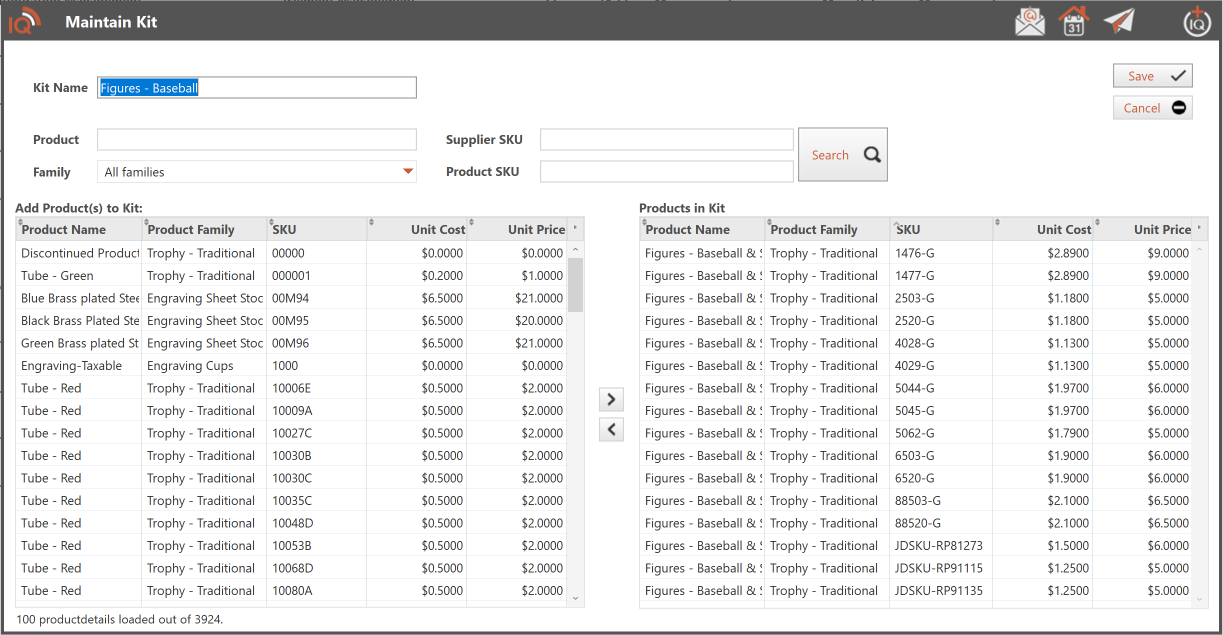
The Maintain Kit screen displays the selected kit and its assigned component products.
The screen contains two product lists:
- Available Components (Left): Displays component products available to be added to the kit.
- Selected Kit Components (Right): Displays the component products currently included in the kit.
Review the existing components before making changes.
Step 2: Search for Component Products
The Maintain Kit screen provides four search fields to help locate component products.
- Family: A dropdown list used to select a product family.
- Three Additional Search Fields: Free-text fields used to narrow the available component products.
To locate components:
- Select a product family from the Family dropdown, if desired.
- Enter search criteria in one or more of the three free-text fields.
- Review the matching component products displayed in the available products list.
Tip: Combine the Family dropdown with the free-text search fields to locate specific component products more efficiently.
Step 3: Add Component Products to the Kit
To add additional components to an existing kit:
- Locate the desired component product in the available products list on the left.
- Select the component product.
- Click the right arrow button between the two lists.
- The selected component will appear in the kit components list on the right.
- Repeat these steps until all desired components have been added.
Example: A trophy shop introduces a new Green Trophy Column. The user can locate the new column and add it to the existing Trophy Columns kit.
Step 4: Remove Component Products from the Kit
To remove a component that is no longer needed:
- Locate the component product in the selected kit components list on the right.
- Select the component product you want to remove.
- Click the left arrow button between the two lists.
- Verify that the component is no longer displayed in the selected kit components list.
- Repeat as needed to remove additional components.
Important: Removing a component from a kit only removes it from that kit. The component product remains in Order Manager and can still be used in other kits or finished products.
Step 5: Review and Save Your Changes
Before saving, review the kit information and component products.
Verify that:
- The kit information is correct.
- All desired component products are included.
- Components that are no longer needed have been removed.
Save the changes to update the existing kit.
What's Next?
After modifying a kit, the updated component selections can be used when configuring finished products that have the kit assigned.
See: Assigning Kits to Finished Products.
Related Kit Topics
Understanding Kits — Learn what kits are and how they work.
Work With Kits — Learn how to access and manage kits.
Creating a New Kit — Learn how to create a kit and add component products.
Assigning Kits to Finished Products — Learn how to associate kits with finished products.
Selecting Kit Components During Order Entry — Learn how to select components from assigned kits.