
Overview
The Assigning Kits to Finished Detail Products function in bizwizIQ® Order Manager allows users to assign one or more existing kits to a Finished Detail Product.
Each kit contains a group of component products that provide customization options when the Finished Detail Product is added to a customer order.
A Finished Detail Product can have multiple kits assigned to it. During order entry, users can select one component from each assigned kit to configure the product.
For more information about kits, see Understanding Kits.
Example: Assigning Kits to a Custom Trophy
A trophy shop sells a customizable trophy that allows customers to select a column, base, and figure.
The Finished Detail Product could have three kits assigned:
Trophy Columns: Blue Column, Red Column, Gold Column
Trophy Bases: Marble Base, Walnut Base, Plastic Base
Sports Figures: Golf Figure, Baseball Figure, Soccer Figure
When entering an order, the user can select one component from each assigned kit.
This allows multiple product configurations without creating a separate Finished Detail Product for every possible combination.
Accessing the Finished Detail Product
Open bizwizIQ® Order Manager.
Click the Configuration tab.
In the Product Management section, click the Products icon.
The Work With Product screen will open.
Locate and select the product containing the Finished Detail Product you want to configure.
Open the product using Modify.
Locate and open the appropriate Finished Detail Product.
The Maintain Product Detail screen will appear.
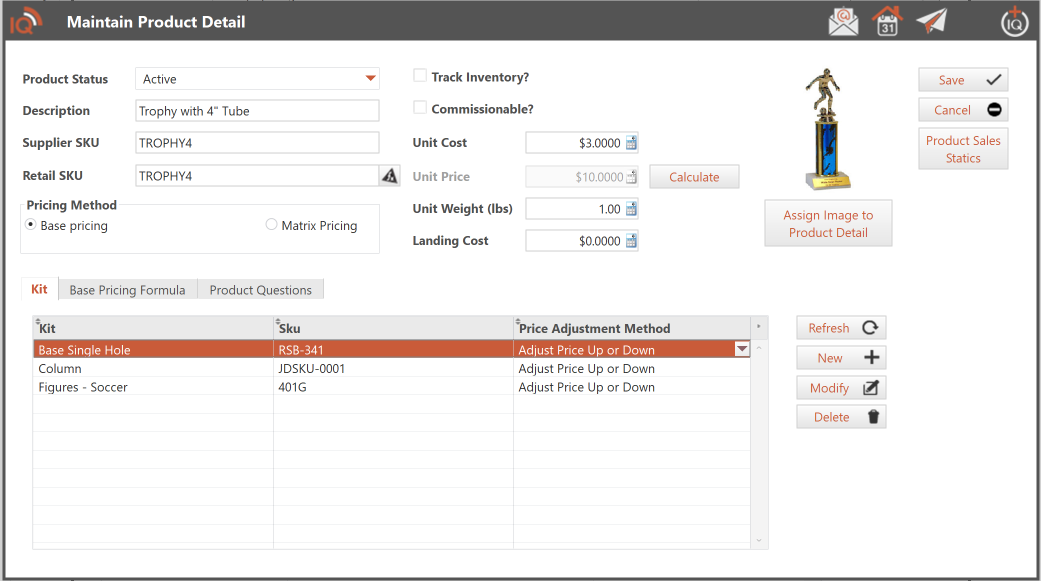
Select the Kit tab to display the kits currently assigned to the Finished Detail Product.
Assigning Kits to a Finished Detail Product
Step 1: Review Existing Kit Assignments
The Kit tab displays the kits currently assigned to the selected Finished Detail Product.
Review the existing assignments before adding or modifying kits.
The screen provides three functions:
New: Assign a new kit to the Finished Detail Product.
Modify: Change an existing kit assignment.
Delete: Remove an existing kit assignment from the Finished Detail Product.
Step 2: Add a Kit Assignment
Click New on the Kit tab.
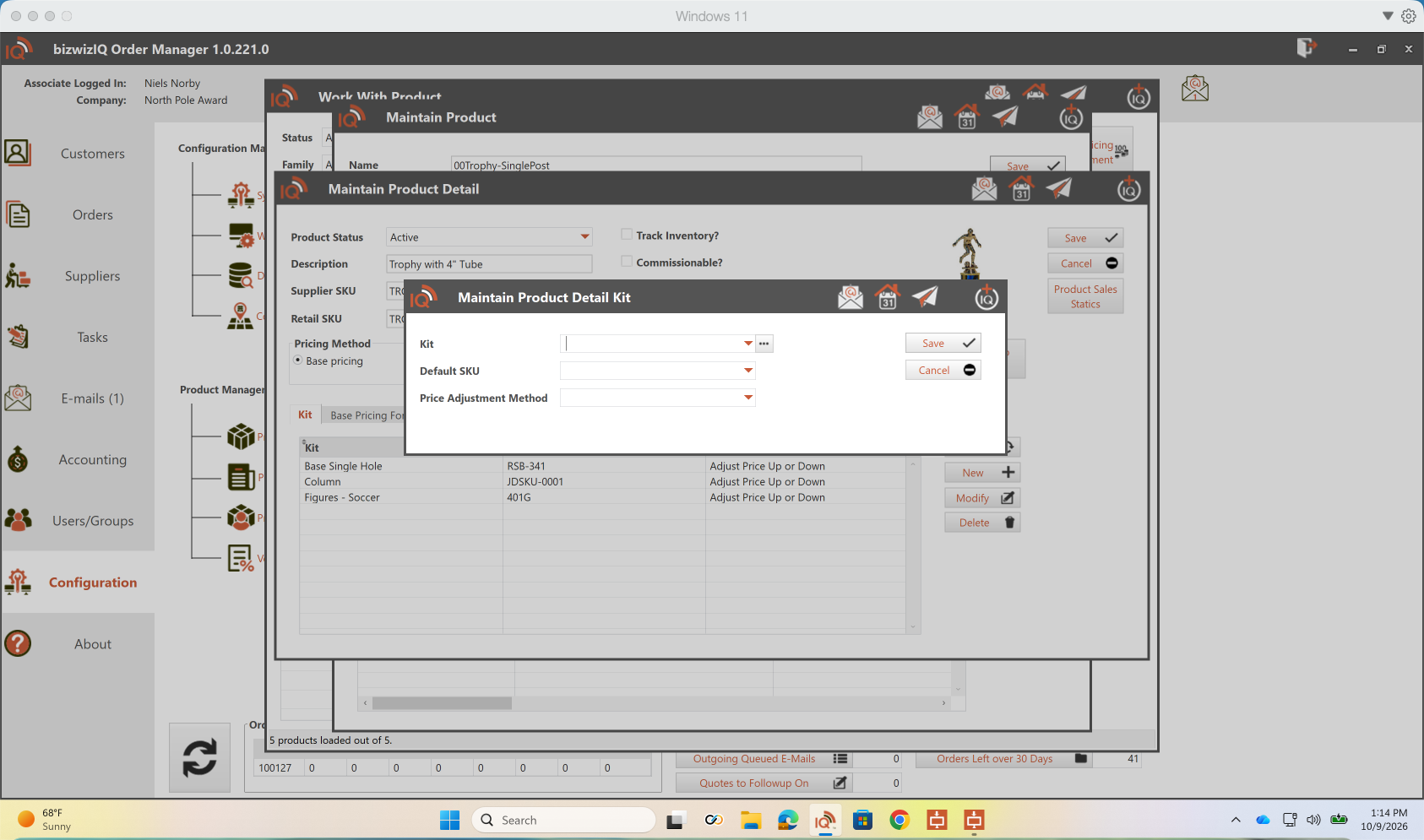
The Maintain Product Detail Kit window will open.
Complete the kit assignment information.
Step 3: Enter Kit Assignment Information
The Maintain Product Detail Kit window contains three fields.
Kit
Select the kit you want to assign to the Finished Detail Product using the dropdown list.
The button next to the Kit field provides access to additional kit-related functionality.
Default SKU
Select a component SKU from the Default SKU dropdown list.
This field identifies the default component associated with the kit assignment.
Price Adjustment Method
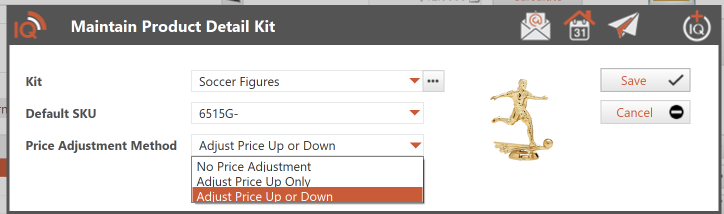
The Price Adjustment Method determines how the selling price of a Finished Detail Product is affected when a different component is selected from an assigned kit during order entry.
Each component product within a kit has its own price. The Default SKU identifies the default component used for the kit assignment.
When a different component is selected, Order Manager uses the selected Price Adjustment Method to determine whether the Finished Detail Product's selling price should change.
There are three available pricing methods:
1. No Price Adjustment
The selling price of the Finished Detail Product remains unchanged, regardless of the price of the component selected.
Example:
- Default Component Price: $5.00
- Selected Component Price: $8.00
- Price Adjustment: $0.00
The Finished Detail Product's selling price remains unchanged.
2. Adjust Price Up Only
The selling price of the Finished Detail Product increases when the selected component costs more than the default component.
If the selected component costs less than the default component, no price reduction is applied.
Example — Higher-Priced Component:
- Default Component Price: $5.00
- Selected Component Price: $8.00
- Price Adjustment: +$3.00
The Finished Detail Product's selling price increases by $3.00.
Example — Lower-Priced Component:
- Default Component Price: $5.00
- Selected Component Price: $3.00
- Price Adjustment: $0.00
The Finished Detail Product's selling price remains unchanged.
3. Adjust Price Up or Down
The selling price of the Finished Detail Product increases or decreases based on the price difference between the selected component and the default component.
Example — Higher-Priced Component:
- Default Component Price: $5.00
- Selected Component Price: $8.00
- Price Adjustment: +$3.00
The Finished Detail Product's selling price increases by $3.00.
Example — Lower-Priced Component:
- Default Component Price: $5.00
- Selected Component Price: $3.00
- Price Adjustment: -$2.00
The Finished Detail Product's selling price decreases by $2.00.
Price Adjustment Comparison
| Component Selection | No Adjustment | Up Only | Up or Down |
|---|---|---|---|
| $5 default → $8 selected | $0.00 | +$3.00 | +$3.00 |
| $5 default → $3 selected | $0.00 | $0.00 | -$2.00 |
Important: The Price Adjustment Method is configured separately for each kit assigned to a Finished Detail Product. This allows different kits to use different pricing rules.
Step 4: Save the Kit Assignment
- Review the selected Kit, Default SKU, and Price Adjustment Method.
- Click Save.
- The Maintain Product Detail Kit window will close.
- The assigned kit will appear in the Kit tab of the Maintain Product Detail screen.
Step 5: Assign Additional Kits
A Finished Detail Product can have multiple kits assigned to it.
To assign additional kits:
- Click New on the Kit tab.
- Select the next kit to assign.
- Complete the Default SKU and Price Adjustment Method fields.
- Click Save.
- Repeat until all desired kits have been assigned.
Example: A customizable trophy could have separate kits for its base, column, and figure.
Important: During order entry, only one component can be selected from each assigned kit.
Modifying an Existing Kit Assignment
To modify an existing kit assignment:
- Open the Finished Detail Product and select the Kit tab.
- Select the kit assignment you want to change.
- Click Modify.
- The Maintain Product Detail Kit window will open.
- Make the necessary changes.
- Click Save to retain the changes.
Removing a Kit Assignment
To remove a kit assignment from a Finished Detail Product:
- Open the Finished Detail Product and select the Kit tab.
- Select the kit assignment you want to remove.
- Click Delete.
- Complete any confirmation requested by Order Manager.
Important: Removing a kit assignment from a Finished Detail Product is different from deleting the kit itself. The kit remains available for use with other Finished Detail Products.
What's Next?
Once kits have been assigned to a Finished Detail Product, users can select the appropriate components when adding that product to a customer order.
Related Kit Topics
Understanding Kits — Learn what kits are and how they work.
Work With Kits — Learn how to access and manage kits.
Creating a New Kit — Learn how to create a kit and add component products.
Maintaining an Existing Kit — Learn how to modify existing kits.
Selecting Kit Components During Order Entry — Learn how to select components from assigned kits.