
Overview
The Maintain Product Family window allows you to create or modify a product family and establish common settings for the detailed products assigned to that family.
These settings include:
- Product family name
- Task workflow definition
- Estimated person minutes
- Base pricing formulas
- Minimum profit requirements
- Unit price rounding
Using these settings helps maintain consistent pricing and production information across related products.
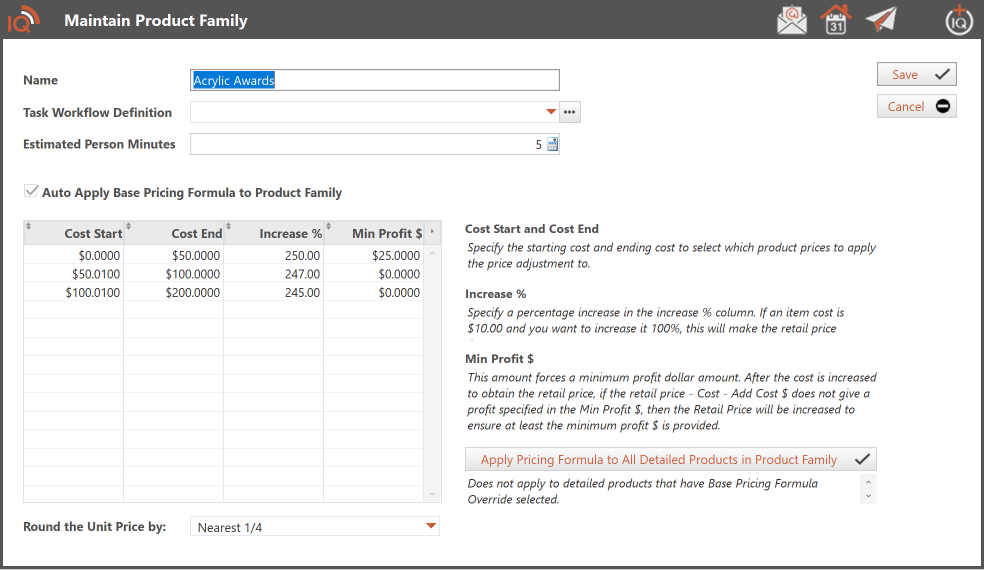
Product Family Information
Name
Enter a descriptive name for the product family.
For example:
- Acrylic Awards
- Crystal Awards
- Drinkware
- Plaques
- Traditional Trophies
Choose a name that clearly identifies the products belonging to the family.
Task Workflow Definition
Select the task workflow definition associated with the product family.
A task workflow definition identifies the production tasks required to complete a product.
For example, an Acrylic Awards workflow might include:
- Artwork Preparation
- Engraving
- Assembly
- Quality Inspection
Detailed products assigned to the product family automatically inherit the family's task workflow definition.
This helps standardize production processes and reduces the need to configure the same workflow for each detailed product individually.
Use the dropdown to select a task workflow definition. The ellipsis (...) button provides access to the additional workflow selection or maintenance function.
Estimated Person Minutes
Enter the estimated number of person minutes required to complete production work associated with the product family.
This value is used for production scheduling and workload estimates.
For example:
If the Estimated Person Minutes is set to 5, the estimated production labor requirement is five person minutes per applicable unit.
For an order requiring 20 units:
20 units × 5 minutes = 100 person minutes
This information helps estimate production workloads and supports scheduling decisions.
Estimated Person Minutes is not used to calculate the product's selling price.
Base Pricing Formula
The Base Pricing Formula allows you to establish pricing rules based on product cost.
Different pricing percentages and minimum profit requirements can be assigned to different cost ranges.
Auto Apply Base Pricing Formula to Product Family
Select this checkbox to enable automatic application of the product family's base pricing formula.
Important: Selecting this checkbox does not immediately recalculate the prices of existing detailed products.
To update existing detailed product prices, click Apply Pricing Formula to All Detailed Products in Product Family.
Pricing Formula Fields
| Field | Description |
|---|---|
| Cost Start | Beginning product cost for the pricing range. |
| Cost End | Ending product cost for the pricing range. |
| Increase % | Percentage increase applied to the product cost. |
| Min Profit $ | Minimum dollar profit required for the pricing range. |
Cost Start and Cost End
These fields define the product cost range to which a pricing formula applies.
For example:
| Cost Start | Cost End | Increase % | Min Profit $ |
|---|---|---|---|
| $0.00 | $50.00 | 250% | $25.00 |
| $50.01 | $100.00 | 247% | $0.00 |
| $100.01 | $200.00 | 245% | $0.00 |
When calculating the selling price, Order Manager determines which cost range contains the product cost and applies the corresponding pricing formula.
Example:
A detailed product with a cost of $40.00 falls within the first pricing range and receives a 250% increase.
Increase %
The Increase % field specifies the percentage added to the product cost to determine the retail selling price.
Formula:
Retail Price = Product Cost × (1 + Increase % ÷ 100)
Example:
- Product Cost: $40.00
- Increase: 250%
- Calculated Increase: $100.00
- Retail Selling Price: $140.00
The calculated retail selling price is $140.00.
Minimum Profit $
The Min Profit $ field establishes the minimum dollar profit that must be achieved when calculating the retail selling price.
After applying the Increase %, Order Manager calculates the actual profit.
Actual Profit = Retail Price − Product Cost
If the actual profit is greater than or equal to the minimum profit, the calculated selling price is retained.
If the actual profit is less than the minimum profit, Order Manager increases the retail price to satisfy the minimum profit requirement.
Example 1 — Minimum Profit Met
- Product Cost: $40.00
- Increase: 250%
- Calculated Retail Price: $140.00
- Actual Profit: $100.00
- Minimum Profit: $25.00
Since the actual profit of $100.00 exceeds the required minimum profit of $25.00, the retail price remains $140.00.
Example 2 — Minimum Profit Not Met
- Product Cost: $40.00
- Increase: 20%
- Calculated Retail Price: $48.00
- Actual Profit: $8.00
- Minimum Profit: $25.00
Since the actual profit of $8.00 is less than the required minimum profit of $25.00, the retail price must be increased.
Adjusted Retail Price = Product Cost + Minimum Profit
$40.00 + $25.00 = $65.00
The adjusted retail price becomes $65.00, ensuring the required minimum profit is achieved.
Apply Pricing Formula to All Detailed Products in Product Family
This button allows you to apply the product family's pricing formula to existing detailed products assigned to the selected family.
This is particularly useful when updating selling prices after supplier cost changes or when revising your pricing structure.
Applying the Pricing Formula
- Open the Maintain Product Family window.
- Review or modify the pricing ranges.
- Verify the Increase % and Min Profit $ values.
- Select the appropriate rounding option.
- Click Apply Pricing Formula to All Detailed Products in Product Family.
- Follow any prompts presented by Order Manager.
Order Manager applies the family pricing formula to eligible detailed products assigned to the family.
Important: Detailed products with Base Pricing Formula Override selected are excluded from the family-wide pricing update.
This allows selected detailed products to maintain their own pricing formulas.
Example
Suppose the Acrylic Awards product family contains 150 detailed products.
You revise the pricing percentages to reflect increased supplier costs.
Rather than opening and updating each detailed product individually, you can click Apply Pricing Formula to All Detailed Products in Product Family.
Order Manager applies the revised pricing formula to eligible detailed products, excluding those with Base Pricing Formula Override selected.
Round the Unit Price By
The Round the Unit Price by field determines how calculated selling prices are rounded.
For example, selecting Nearest 1/4 rounds the calculated unit price to the nearest $0.25 increment.
| Calculated Price | Rounded Price |
|---|---|
| $12.12 | $12.00 |
| $12.38 | $12.50 |
| $12.62 | $12.50 |
| $12.88 | $13.00 |
This provides consistency in product selling prices.
Note: Price rounding is applied according to the selected rounding increment. Review the final selling price when minimum profit requirements are used.
Saving a Product Family
After entering or modifying the product family settings:
- Verify the product family name.
- Review the task workflow definition.
- Confirm the estimated person minutes.
- Review the pricing ranges and percentages.
- Verify the minimum profit requirements.
- Select the appropriate price rounding option.
- Click Save.
Click Cancel to close the window without saving the current changes.
Remember that saving changes to the family pricing formula does not, by itself, update existing detailed product prices.
Best Practices
Organize Similar Products Together
Create product families for products that share similar pricing and production requirements.
Standardize Production Workflows
Assign appropriate task workflow definitions to product families to simplify production management.
Maintain Accurate Production Estimates
Review estimated person minutes periodically to ensure production scheduling reflects actual workloads.
Review Pricing Formulas Regularly
Update pricing percentages and minimum profit requirements as product costs change.
Use Pricing Overrides When Necessary
Allow detailed products with special pricing requirements to maintain their own pricing formulas.
Review Prices Before Applying Family-Wide Updates
Verify cost ranges, percentages, minimum profits, and rounding settings before applying pricing changes across multiple products.
Related Articles
- Work With Product Families
- Maintain Products
- Maintain Detailed Products
- Task Workflow Definitions
- Product Pricing Formulas