
Getting Started — Article 7 of 11
Before you begin creating customer orders, you'll want to set up the products and services your business sells.
bizwizIQ Order Manager allows you to organize products, maintain individual product details, and configure pricing to simplify order entry.
Products and pricing are managed under the CONFIGURATION tab.
Step 1: Access Your Products
To access your products:
- Log in to bizwizIQ Order Manager.
- Select the CONFIGURATION tab.
- Locate the Product Management section.
- Click Products.
The Work With Products window will open.
From this window, you can create new products, search for existing products, and maintain product information.
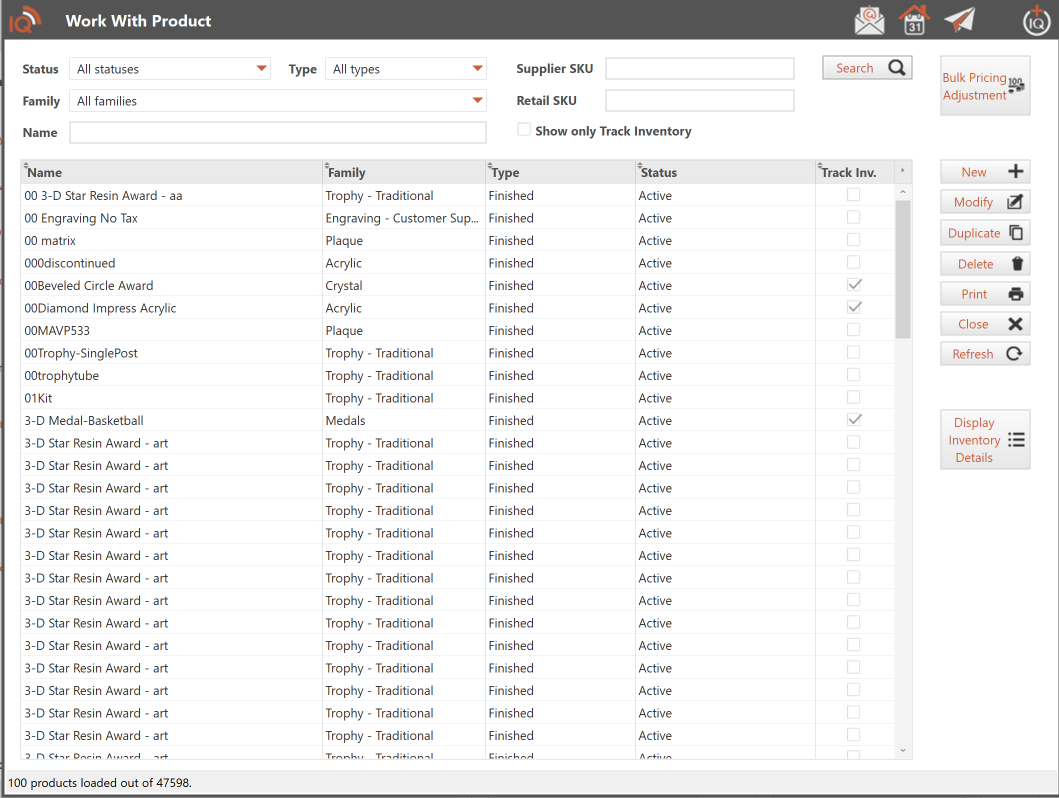
For more information, see Work With Products.
Step 2: Understanding Products and Detailed Products
Order Manager organizes product information into two levels.
Products
A Product is the main record used to organize an item or service your business sells.
For example, you might create a Product named Acrylic Awards.
The Product record contains general information such as:
- Product description
- Supplier
- Product Family
- Product type (Finished Product or Component)
- Product status
- Accounting information
Detailed Products
Detailed Products represent the specific items or variations associated with a Product.
For example, your Acrylic Awards Product might contain:
- 6-inch Acrylic Award
- 8-inch Acrylic Award
- 10-inch Acrylic Award
Each Detailed Product can have its own SKU, cost, selling price, pricing configuration, product image, and inventory control settings.
A Product can have just one Detailed Product or multiple Detailed Products.
This structure allows you to organize similar products together while maintaining the information needed for each individual item.
Step 3: Create a Product
Before creating a Product, make sure the appropriate Product Family has been created.
Product Families help organize your products and can define pricing formulas and production workflows.
We'll cover Product Families in more detail in Article 8.
To create a new Product:
- Open the Work With Products window.
- Click New.
- Enter the general product information.
- Select the appropriate Product Family and other applicable settings.
- Save the Product.
Once the Product has been created, you can begin adding its Detailed Products.
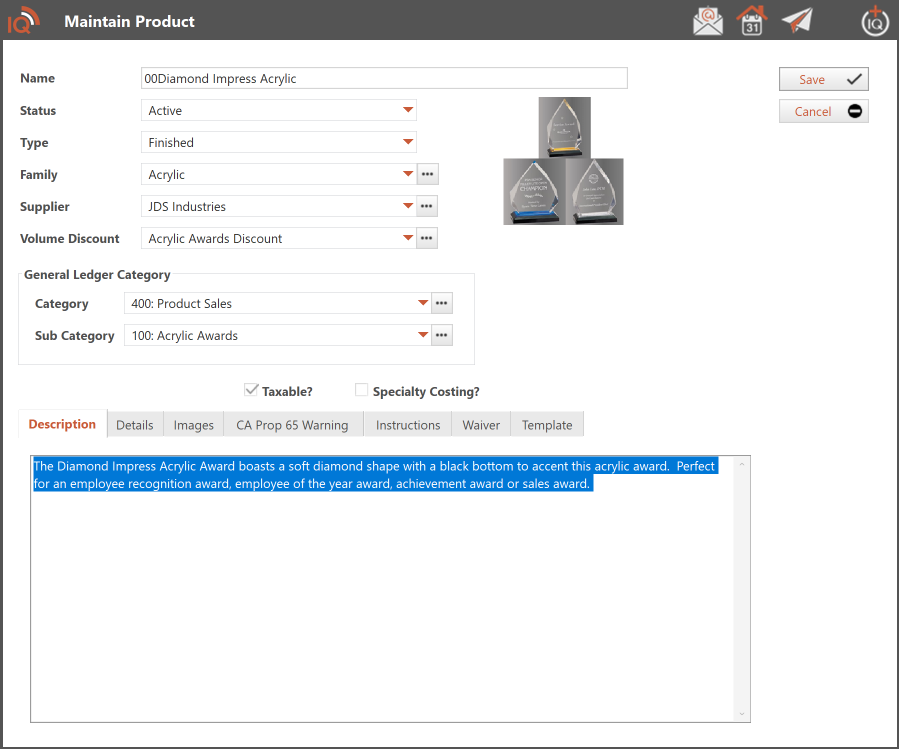
For detailed instructions, see Maintain Product.
Step 4: Add Detailed Products
Detailed Products contain the specific information needed when selecting products for customer orders.
To add a Detailed Product:
- Open the Work With Products window.
- Locate and open the Product you want to maintain.
- On the Maintain Product window, click the Detailed Products tab.
- Click New to add a Detailed Product.
- Enter the SKU, description, cost, and other applicable information.
- Configure the pricing information.
- Save your changes.
Each Detailed Product can have its own SKU, cost, selling price, pricing configuration, product image, and inventory control settings.
This allows you to maintain individual pricing, images, and inventory information for each Detailed Product, even when multiple Detailed Products belong to the same parent Product.
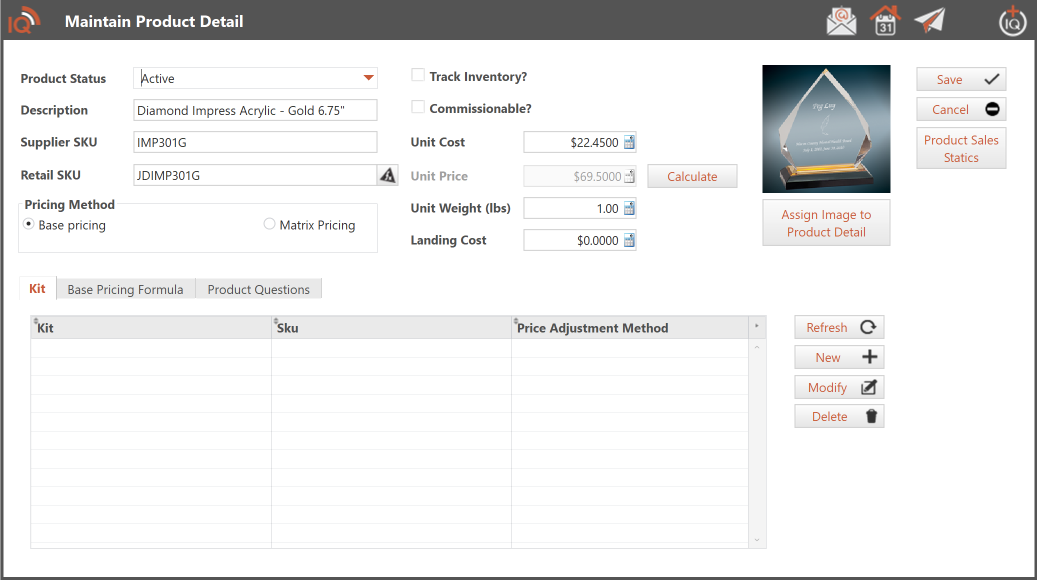
For more information, see Maintain Product Detail.
Step 5: Understanding Product Pricing
Order Manager provides flexible pricing options to accommodate the different types of products and services your business sells.
Depending on your product setup, pricing may include:
- Product Cost: The cost associated with purchasing or producing an item.
- Selling Price: The price charged to your customer.
- Pricing Formulas: Calculations used to determine selling prices.
- Quantity Pricing: Different prices based on the quantity ordered.
- Matrix Pricing: Allows pricing to be calculated using a matrix of product attributes, such as length and width, where the combination of selected values determines the selling price.
Product Family Pricing Formulas
Pricing formulas can be associated with Product Families, allowing similar products to use consistent pricing methods.
For example, a Product Family might use a formula to calculate selling prices based on product cost.
Individual Detailed Products can also override the Product Family's base pricing formula when a different calculation is required.
This is useful when a product needs custom pricing or when its Product Family does not have a base pricing formula configured.
Step 6: Review Your Product Setup
Before using your products in customer orders, review the information you've entered.
Make sure:
- Product descriptions are accurate.
- Detailed Products have the correct SKUs, where applicable.
- Product costs are entered correctly.
- Selling prices or pricing formulas are configured.
- Products are assigned to the appropriate Product Families.
- Product images are assigned where needed.
- Inventory control settings are configured for products you want to track.
You can return to the Products link in the Product Management section of the CONFIGURATION tab at any time to add products or update existing information.
What's Next?
Now that you understand how Products and Detailed Products work, you're ready to learn more about organizing products and maintaining supplier information.
Next Article: Setting Up Suppliers and Product Families
Learn how to organize products into families and maintain the suppliers your business purchases from.