
Getting Started — Article 10 of 11
Now that you've configured your company, customers, products, and sales tax settings, you're ready to create your first customer order in bizwizIQ Order Manager.
Order Manager helps you organize customer information, products, pricing, and order details in one place, making it easier to manage custom and personalized orders.
In this article, we'll walk through the basic steps of creating a new customer order.
Step 1: Access Orders
To begin creating an order:
- Log in to bizwizIQ Order Manager.
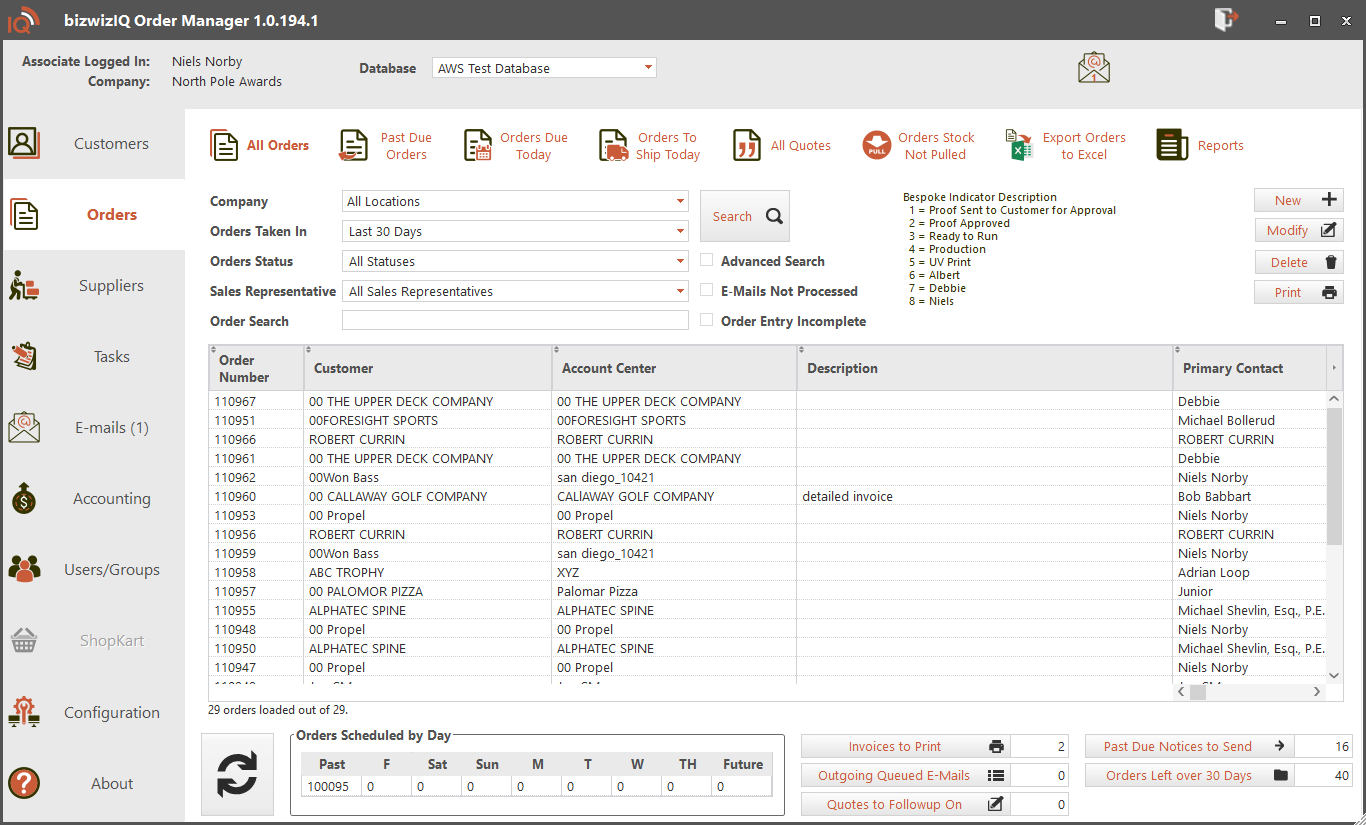
- Select the ORDERS tab.
The Work With Orders window will automatically be displayed.
From this window, you can create new orders, search for existing orders, and maintain customer order information.
To create a new order, click New.
Step 2: Select a Customer
Every customer order must be associated with a customer.
When creating a new order:
- Locate the customer selection field.
- Search for and select the appropriate customer.
- Review the customer's information to ensure you've selected the correct account.
If the customer does not already exist in Order Manager, you may need to create a customer record before proceeding.
For additional information, see Setting Up Customers.
Step 3: Enter Order Information
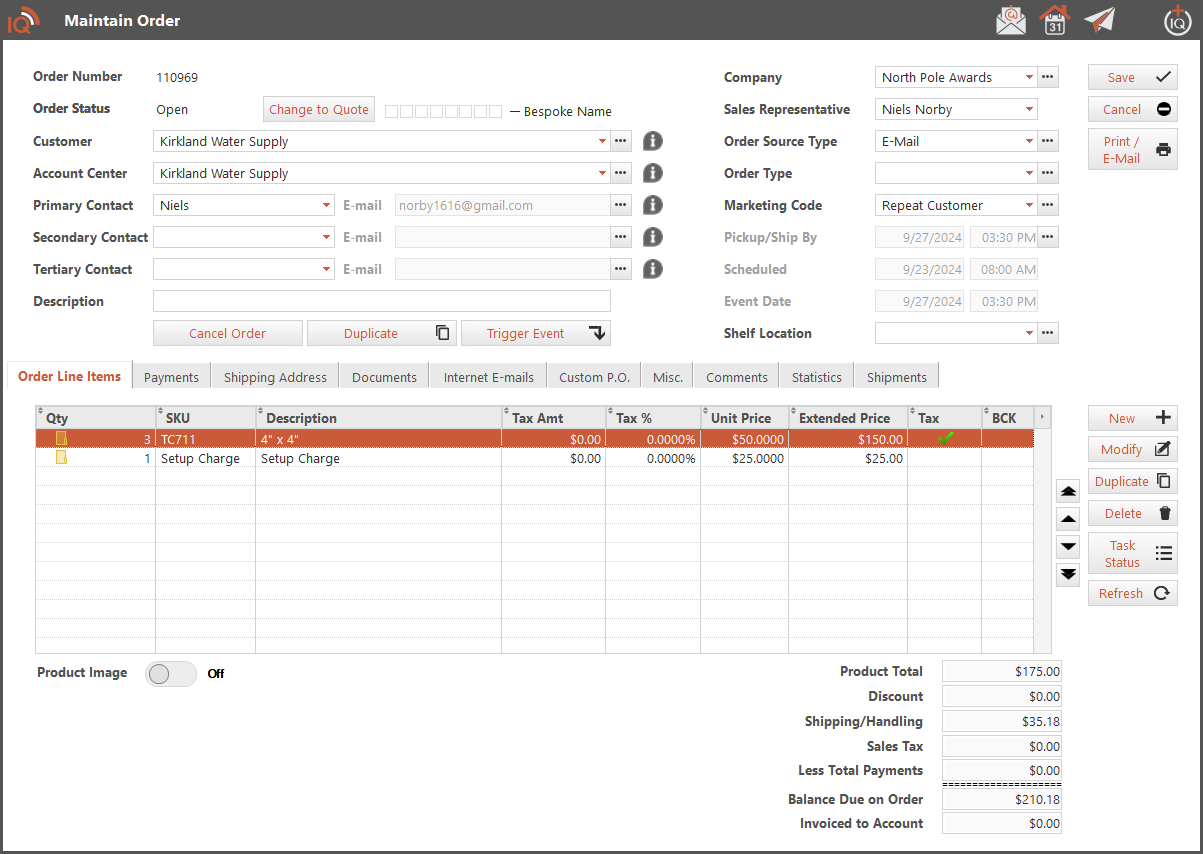
Once you've selected the customer, enter the information needed for the order.
Depending on the order, this may include:
- Order Dates: Important dates associated with the order, including when the customer needs the products.
- Customer Reference: A customer purchase order number or other reference, when applicable.
- Shipping or Pickup Information: How the customer will receive the completed order.
- Order Notes: Special instructions or additional information about the order.
Review the information carefully before continuing.
Step 4: Add Products to the Order
Next, add the products the customer is purchasing.
To add a product:
- Locate the order line item section.
- Select the option to add a new line item.
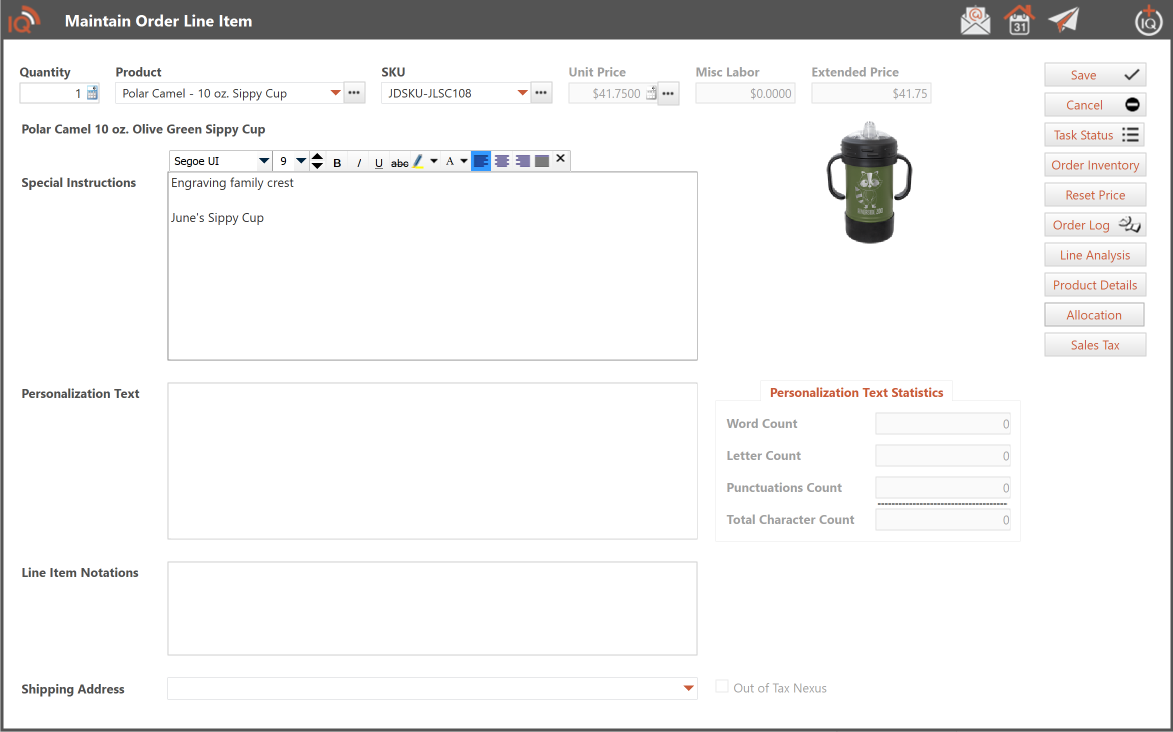
- Search for the appropriate Product.
- Select the Detailed Product being ordered.
- Enter the quantity and other required information.
- Review the selling price and any applicable product options.
- Save the order line item.
Repeat these steps for each additional product the customer is ordering.
Understanding Order Line Items
Each order line item represents a product being purchased by the customer.
For example, a customer ordering five engraved acrylic awards and two personalized plaques would typically have separate order line items for each product.
Detailed Products can contain their own pricing, inventory settings, and other information configured during product setup.
For additional information, see Setting Up Products and Pricing.
Step 5: Review Product Options and Kits
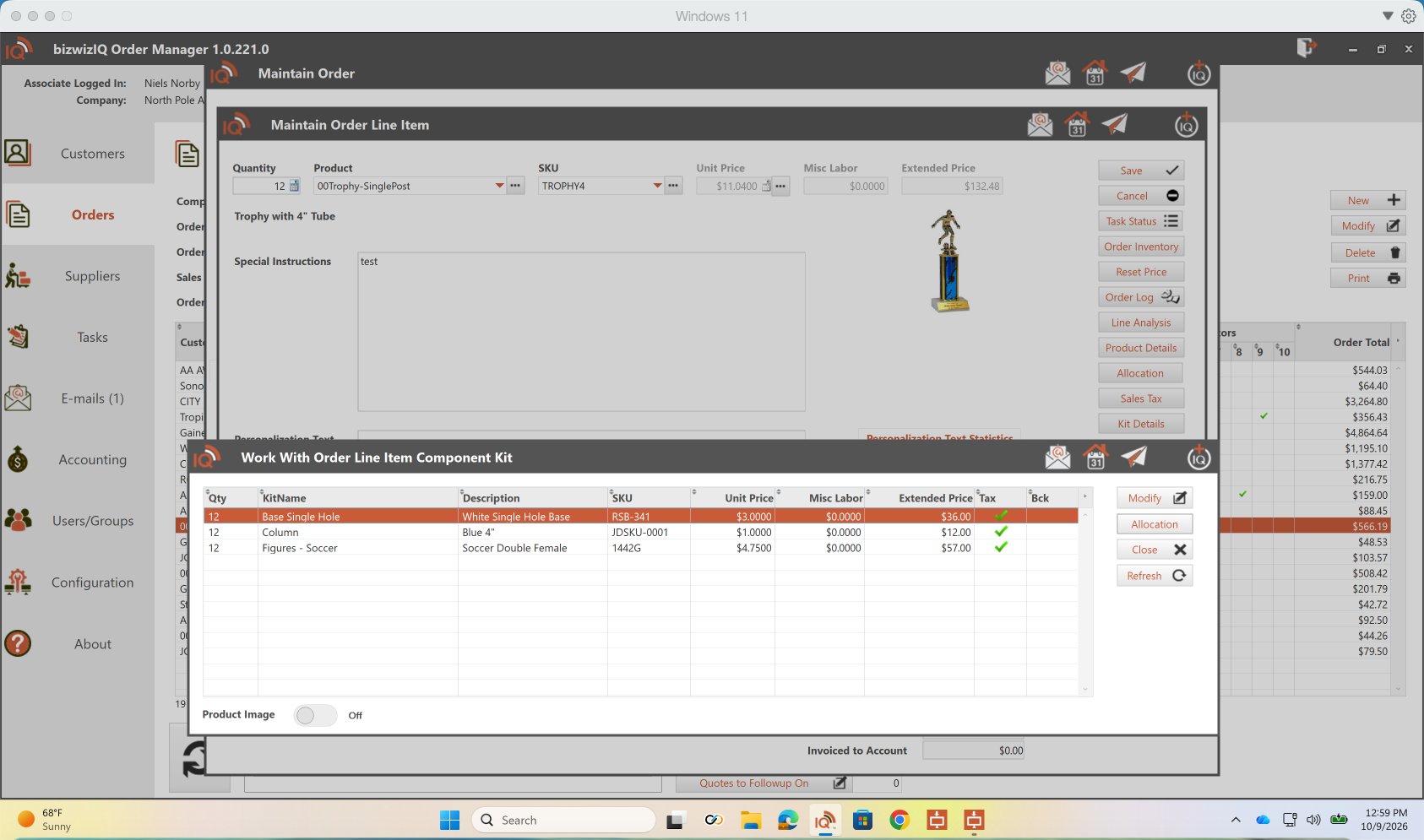
Some Detailed Products may have Component Kits assigned to them. Kits allow users to select different components when ordering a product.
For example, a trophy may include a choice of base, column, and figure.
When you click Save on an order line item containing a Detailed Product with assigned Kits, the Work With Order Line Item Component Kit window will automatically open.
This window displays the selected Kit components, including their descriptions, SKUs, quantities, and prices.
Changing a Kit Component
To change a component:
- Select the component you want to change.
- Click Modify.
- The Maintain Order Line-Item Component Kit window will open.
- Use the SKU dropdown to select a different component.
- Click Save to retain your selection.
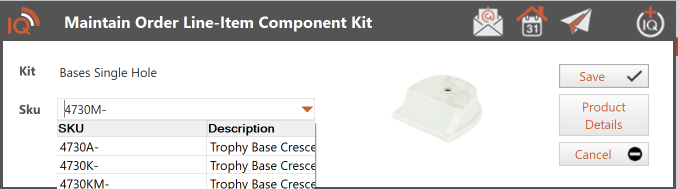
Depending on the Kit's configured Price Adjustment Method, selecting a different component may adjust the selling price of the Finished Detailed Product.
Once you've reviewed the Kit components, click Close to return to the order.
For additional information, see your detailed help article, Selecting Kit Components During Order Entry.
Step 6: Review the Order
After adding the products, review the order information.
Check that:
- The correct customer has been selected.
- The order dates and delivery information are accurate.
- All requested products have been added.
- Quantities and selling prices are correct.
- Any required product options or Kit components have been selected.
- Special instructions have been entered.
Review the order totals and applicable sales tax before proceeding.
Step 7: Save Your Order
Once you've reviewed the order information, save your changes.
Your customer order is now entered in bizwizIQ Order Manager and ready for the next steps in the order-processing workflow.
You can return to the order to review or update its information as needed.
What's Next?
Now that you've created your first order, you're ready to learn how to process it.
Next Article: Processing Your First Order
Learn how to manage an order through production, track its progress, and complete the order when it's ready for the customer.
Previous: Setting Up Sales Tax
Next: Processing Your First Order
← Setting Up Sales Tax | Processing Your First Order →